 HappyHorse Model
AI Video Generation Aspect Ratios: 16:9 vs 9:16 vs 1:1
Choosing the right ai video generation aspect ratio can make the difference between a video that feels native on the platform and one that gets cropped, ignored, or reformatted poorly.
If you’ve ever generated a gorgeous scene, only to watch it lose the subject’s face in a vertical crop or export in a weird almost-4:3 shape, you already know the pain point. The ratio you choose affects composition, readability, captions, product placement, and whether your final upload actually looks like it belongs on YouTube, TikTok, Reels, or Shorts. That matters whether you’re working in a polished commercial tool, testing an open source ai video generation model, experimenting with an image to video open source model, or trying to run ai video model locally for faster iteration.
A lot of creators still treat aspect ratio like a last-step export setting. In practice, it’s a planning decision. Pick wrong at the start, and you’ll spend the rest of the workflow fixing crops, moving captions, and rebuilding shots for each destination. Pick right, and your generations, edits, and exports all line up with how people actually watch.
What the AI video generation aspect ratio actually changes

Aspect ratio vs resolution: the difference that affects exports
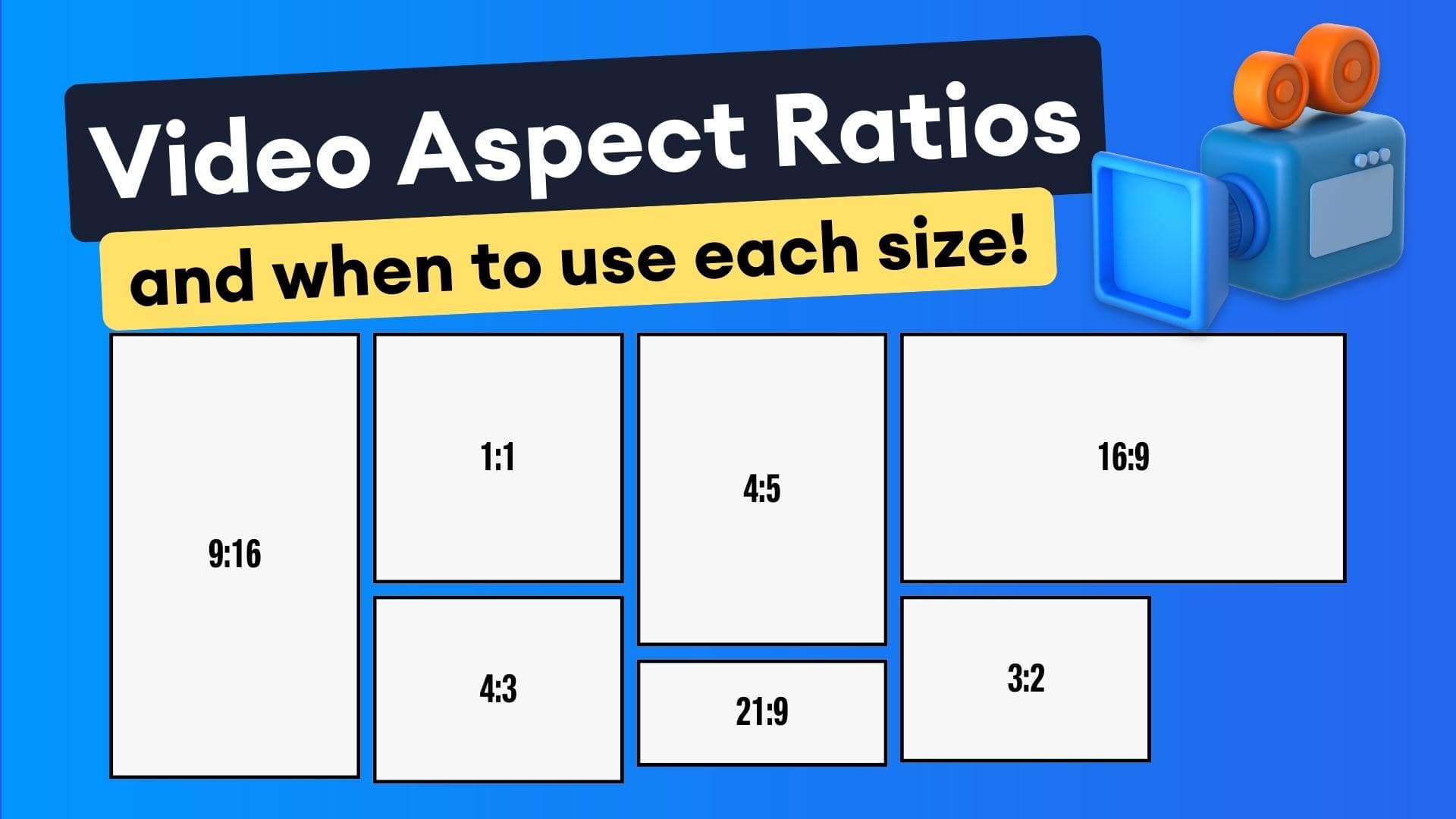
Aspect ratio is the shape of the frame. Resolution is the number of pixels inside that shape. Those two get mixed up constantly, and the confusion causes bad exports.
Take 9:16 as a simple example. A common social export is 1080 x 1920. That resolution gives you a vertical video, but the important part is the relationship between width and height: 9 units wide by 16 units tall. You could also export 720 x 1280 and still be in 9:16. Same ratio, different resolution. The same logic applies to 16:9 and 1:1. A 1920 x 1080 file is 16:9, while 1080 x 1080 is 1:1 square.
That distinction matters because platforms react to shape first. YouTube long-form is still built around horizontal viewing, and Artlist puts it plainly: YouTube loves 16:9. On the other hand, Synthesia’s guidance for Shorts says 9:16 is recommended because Shorts are most likely watched on smartphones in vertical orientation. So if your file is technically high resolution but the wrong shape, it can still feel off-platform.
Why framing changes when you switch from 16:9 to 9:16 or 1:1
Here’s the practical way to think about the three common formats.
16:9 is widescreen. It gives you room for landscapes, side-by-side action, cinematic establishing shots, tutorials with interface space, and product demos where context matters.
9:16 is portrait. It fills a phone naturally and puts the subject front and center.
1:1 is square. It’s compact, balanced, and useful when you want a repurpose-friendly crop that travels reasonably well across feeds.
The key change is composition. In 16:9, your subject can sit left or right with background context still visible. In 9:16, that same scene often needs the subject stacked vertically in the center, with less empty space at the sides. In 1:1, framing gets tighter, and every element inside the square needs to justify its place. Hands holding products, subtitles, and face positioning all need a rethink.
AI-generated videos can exaggerate these differences. Some tools don’t frame scenes consistently across formats. Others may output unexpected shapes entirely. There are user reports of Luma and Runway generations appearing closer to a 4:3-like output than the requested ratio. That means you can’t assume your prompt alone guarantees the final framing.
There’s also a useful caution around model behavior. A Facebook snippet cited in the research suggests some video models “think” more cinematically in horizontal format because so much training data comes from horizontal footage. That claim is incomplete, so it should be treated carefully, but it matches what many of us see in practice: some models compose better in widescreen unless you explicitly push them toward vertical.
The simple rule that saves time is this: choose the final destination first, then generate or edit for that ratio. Don’t try to force one master file everywhere if the platforms expect different viewing shapes.
Best ai video generation aspect ratio for each platform

Use 16:9 for YouTube long-form and widescreen viewing
For YouTube long-form, 16:9 is still the cleanest default. It matches desktop players, TV viewing, laptop screens, and the cinematic language most viewers expect when they click a standard YouTube video. If you’re making explainers, podcasts, interviews, software walkthroughs, educational content, or branded videos with room for lower thirds and B-roll, 16:9 gives you the most flexibility.
Artlist’s guidance is direct: YouTube loves 16:9. That lines up with real-world editing too. Horizontal framing makes it easier to place a host on one side, graphics on the other, or build narrative shots with foreground and background depth. If you’re prompting an open source transformer video model for landscapes, travel scenes, product environments, or cinematic motion, 16:9 often gives the model enough width to create context that feels intentional.
Use 9:16 for TikTok, Instagram Reels, Stories, and YouTube Shorts
If the destination is TikTok, Instagram Stories, Instagram Reels, or YouTube Shorts, 9:16 is the native choice. Artlist notes that TikTok and Instagram Stories thrive on 9:16 vertical, and the Instagram-focused research summary confirms 9:16 as the optimal format for both Reels and Stories. Synthesia adds the key reason for Shorts: they are primarily watched on smartphones in portrait orientation.
That matters because vertical isn’t just a crop; it changes how people consume the video. On mobile, a full-height 9:16 clip owns more screen space, grabs attention faster, and makes talking-head, product-in-hand, and direct-to-camera formats feel more immediate. If you’re generating social-first content with text-to-video, one research note specifically points to 1080p with a 9:16 aspect ratio as a practical mobile-first setup.
This is also why many creators start social-first AI workflows in vertical. If the final product is a Reel or TikTok, it’s smarter to prompt and frame around center-weighted action from the start than to create a beautiful widescreen shot and crop half of it away later.
When 1:1 still makes sense in a repurposing workflow
1:1 still earns its place, just not as the primary best-performing format for a major platform in the research here. Think of it as a useful middle ground for repurposing. OpusClip explicitly supports 16:9, 9:16, and 1:1 transformations, which tells you square remains part of practical multi-platform workflows.
Square works well when you want a compact version for social feeds, simple talking-head clips, quote videos, and product highlights where the subject can sit centrally without needing the extra height of 9:16. It’s especially helpful when your source material doesn’t crop cleanly to vertical but still needs a social-friendly version.
Here’s a quick lookup you can use while planning:
- YouTube long-form: 16:9
- YouTube Shorts: 9:16
- TikTok: 9:16
- Instagram Reels: 9:16
- Instagram Stories: 9:16
- Cross-posted compact social version: 1:1
If you’re building a content machine around an ai video generation aspect ratio strategy, that table alone will prevent a lot of unnecessary re-editing.
16:9 vs 9:16 vs 1:1: how to choose the right ai video generation aspect ratio
Pick based on viewing behavior, not personal preference
The best ratio is not the one you personally like looking at in the editor. It’s the one that matches how the video will actually be watched.
Use 16:9 when the story needs context. It’s strongest for cinematic shots, educational screen-led content, product demos with environment, interviews, webinars, and tutorials where you need room for interface elements or side graphics. If the goal is depth, scenery, or side-to-side motion, widescreen wins.
Use 9:16 when the priority is attention on a phone screen. It’s ideal for Shorts, Reels, Stories, TikTok explainers, direct-to-camera clips, before-and-after transformations, unboxings, beauty content, fitness demos, and fast hooks where the subject should dominate the frame. Vertical also works especially well when captions are part of the viewing experience because the whole composition is built for handheld mobile consumption.
Use 1:1 when you need a compact, easy-to-repurpose version that still feels clean in social feeds. It’s a practical choice for square crops of interviews, product showcases, simple ads, and quote-style clips where central framing matters more than cinematic breadth or full-screen vertical immersion.
A fast decision framework for educational, cinematic, and social videos
The same prompt can produce very different results depending on the target ratio. A cinematic prompt like “slow dolly through a neon-lit street with pedestrians in the foreground and city glow in the distance” usually benefits from 16:9 because width helps establish atmosphere. Turn that into 9:16, and the same prompt needs a different emphasis: one subject centered, less side clutter, stronger vertical depth, and text-safe space above or below.
For talking-head content, 9:16 often outperforms 16:9 on social because the face fills more of the screen. For tutorials, 16:9 usually makes more sense if the content includes desktop interfaces or multiple visual reference points. For short product clips, both can work, but the deciding factor is destination: website hero and YouTube? 16:9. TikTok ad? 9:16. Feed-friendly cutdown? 1:1.
A simple decision tree works well:
- If the video is primarily for long-form YouTube, use 16:9
- If it is for Shorts, Reels, Stories, or TikTok, use 9:16
- If you need a compact repurpose version, use 1:1
That logic becomes even more important when you’re testing several tools, from a commercial generator to happyhorse 1.0 ai video generation model open source transformer projects and other experimental pipelines. Different systems may render motion, faces, and scene spacing differently, so the clearer your target format is, the less cleanup you’ll need later.
Social-first AI video generation often starts in 9:16 for exactly this reason. Many creators and tools optimize around mobile publishing first, then derive other versions from that core asset if needed.
How to convert AI videos between aspect ratios without ruining the framing
Why reframing is more effective than simple resizing
Converting between ratios is not about stretching a file until it fits. It’s about preserving readability, subject visibility, and engagement.
StreamYard’s guidance gets this exactly right: moving from 16:9 to 9:16 is about more than resizing; it’s about keeping the subject readable and engaging. If you just scale a widescreen video down inside a vertical frame, you get tiny people and giant empty bands. If you blindly crop the middle, you risk cutting off faces, hands, products, or on-screen text.
Reframing solves that. Instead of asking, “How do I make this shape fit?” ask, “What needs to stay visible in the new shape?” That shift changes your whole workflow. A good vertical conversion keeps the speaker’s eyes in frame, the product centered, the action readable, and the captions inside safe areas.
How to move from 16:9 to 9:16 with a target timeline
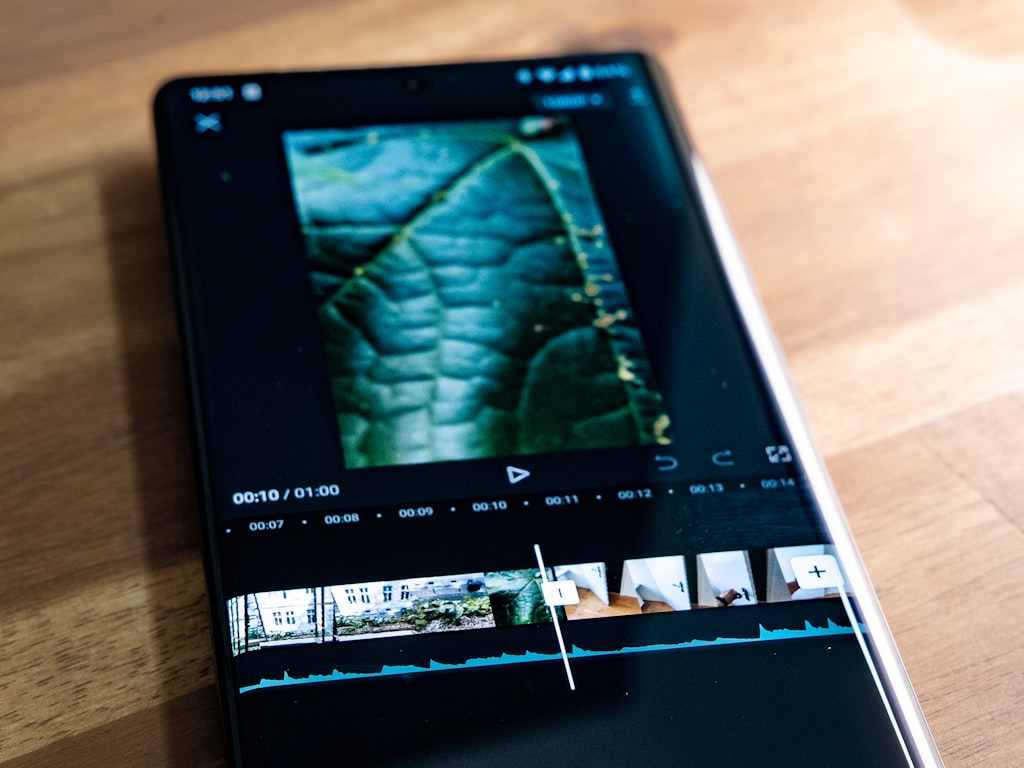
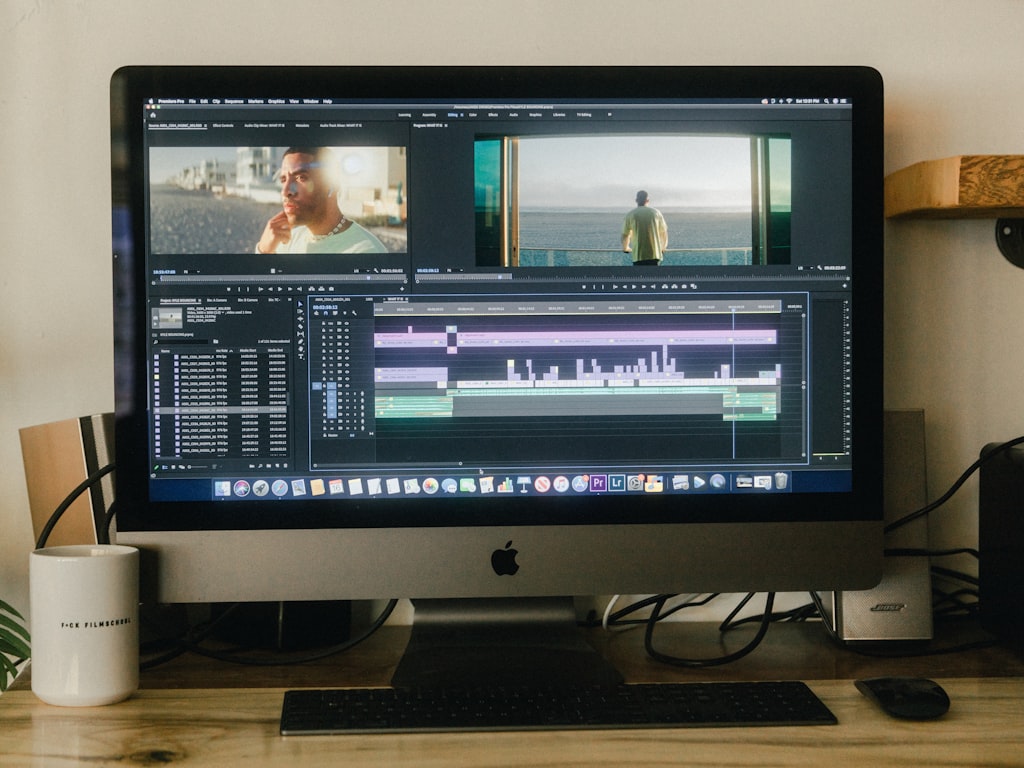
A practical workflow from editors is simple and effective: set up the target 9:16 timeline first, bring the widescreen edit into that timeline, then use Smart Conform or a similar AI-assisted reframe tool. That sequence matters. When the destination timeline comes first, every crop and repositioning decision is made against the actual final frame.
If you’re working from a 16:9 source, place the clip into the 9:16 sequence and check where the subject lands. Then use automated reframing tools to detect the key subject and adjust the crop through the shot. OpusClip describes this kind of process clearly: AI can detect key subjects, adjust framing, and transform video into 16:9, 9:16, or 1:1 without the classic stretched-face problem.
That’s especially useful when one source video needs multiple deliverables. A single edit can become a YouTube version, a Shorts version, and a square social version, as long as each gets its own framing pass. This is where your ai video generation aspect ratio plan saves real time: you’re not improvising exports; you’re creating purpose-built versions.
After conversion, use this checklist shot by shot:
- Are heads fully visible, with comfortable space above them?
- Are captions inside safe areas and not too low for app overlays?
- Are hands visible in demos or talking-with-hands shots?
- Are products centered and readable?
- Is all on-screen text still legible after the crop?
- Did any logos, lower thirds, or UI elements get pushed out of frame?
- Does the crop track the subject naturally during motion?
If something looks off, reframe manually before exporting. A clean manual adjustment on three key shots beats publishing a perfectly encoded video with broken composition.
Export settings and technical specs for each ai video generation aspect ratio
Recommended dimensions for 16:9, 9:16, and 1:1
The most useful export specs are straightforward:
- 16:9: 1920 x 1080
- 9:16: 1080 x 1920
- 1:1: 1080 x 1080
Those dimensions are practical because they’re widely accepted, easy to edit with, and familiar to most delivery platforms. For vertical repurposing, the research specifically points to 1080 x 1920 when formatting 16:9 content into a Reel. That gives you a clear benchmark for portrait exports intended for social distribution.
Starting with the correct output dimensions reduces platform-side cropping and helps preserve image quality. If your generator or editor exports an odd size, the platform may resize it again, which can soften details, alter framing, or create awkward black bars.
Safe social export settings for vertical uploads
For social-friendly vertical uploads, the research notes recommend:
- Container: MP4
- Video codec: H.264
- Audio codec: AAC
That combination is a safe default for Reels-style exports and works well across most major platforms. It’s not glamorous, but it’s reliable. If your tool gives you too many options, this is the practical lane to stay in for broad compatibility.
There’s another reason to get technical specs right early: some AI tools and editors interpret framing differently at export than they do in preview. You may line up a beautiful center crop in the timeline, then discover the exported file is slightly shifted or padded. That problem shows up more often when you’re testing newer workflows, whether that’s a niche image to video open source model, a setup where you run ai video model locally, or a platform with limited export controls.
Before publishing, verify three things:
- Actual dimensions of the exported file
- Framing on the platform preview screen
- Text safety once the app overlay appears
If you’re using open models, also keep an eye on practical deployment issues. An open source ai model license commercial use question won’t change the aspect ratio, but it absolutely affects whether you can safely use the exported content in paid campaigns, client work, or monetized publishing. Technical fit and legal fit need to be checked together in a real workflow.
The best export habit is simple: create separate final files for each platform instead of one compromise file for all of them.
Common AI video generation aspect ratio mistakes and quick fixes
Why some AI videos come out in unexpected shapes
One of the most frustrating issues in AI video work is requesting one shape and getting another. The research includes user reports of tools like Luma and Runway generating videos that appear closer to a 4:3-like format. If you’ve seen this happen, you know how disruptive it is. Your captions no longer fit, your crop template breaks, and your planned platform upload suddenly needs another editing pass.
This happens for a few reasons. First, not every model respects ratio constraints exactly. Second, some tools prioritize scene generation over strict final framing. Third, certain models may be more comfortable with horizontal cinematic composition than vertical social composition. The research includes a cautious clue here: a Facebook snippet suggests models may “think” more cinematically in horizontal format because much of the training data is horizontal. That’s not a complete claim, but it’s useful as a practical warning. If a model keeps giving you horizontal-feeling shots for vertical delivery, the issue may be upstream in generation, not just downstream in export.
How to fix poor crops, empty space, and off-center subjects
The first fix is to regenerate with target-ratio prompts whenever possible. Don’t just request the scene; request the composition. Ask for centered subjects, vertical framing, top-and-bottom breathing room for captions, or tight portrait composition if the destination is 9:16. This matters whether you’re using a polished app or an open source transformer video model with customizable settings.
The second fix is to reframe instead of stretch. Stretching introduces distorted faces, warped products, and unprofessional motion. Reframing keeps the image natural while adapting the crop to the new shape.
The third fix is to export separate versions for each platform. Don’t force a 16:9 master onto TikTok and hope for the best. Build a dedicated 9:16 version for Shorts, Reels, Stories, and TikTok, and create a 1:1 version only when you actually need a square cut.
The fourth fix is to test text-safe areas every single time. App overlays can cover lower captions, buttons, or branding. A crop that looks perfect in your editor may fail once the platform UI appears. Check your title text, subtitles, callouts, and lower thirds in preview before posting.
A clean publishing workflow keeps you out of rework:
- Choose the platform
- Choose the ratio
- Generate for that ratio
- Reframe for alternate versions
- Export platform-specific files
- Preview before publishing
That workflow is what keeps a promising generation from turning into a last-minute salvage job. Match the platform first, then let editing and reframing produce clean 16:9, 9:16, and 1:1 deliverables from the same source. When you do that, your videos look intentional everywhere instead of merely “adapted.”