 HappyHorse Model
Camera Motion Control in AI Video Generation: A Practical Guide to Better Shots
The fastest way to make AI video look more cinematic is to control camera movement with clear intent instead of adding motion at random. That one shift changes everything. A simple pan that reveals a subject at the right moment usually looks better than a clip full of spinning, shaking, and sudden direction changes. If a shot feels flat, the answer usually is not “more motion.” It is better motion.
That matters whether you are working in a polished app with built-in presets or testing an open source ai video generation model, an image to video open source model, or even trying to run ai video model locally. The principle stays the same: define what the camera should do, why it should do it, and how fast it should move. Once you start thinking like that, your clips stop feeling like accidental animation and start feeling shot.
What ai video camera motion control actually means
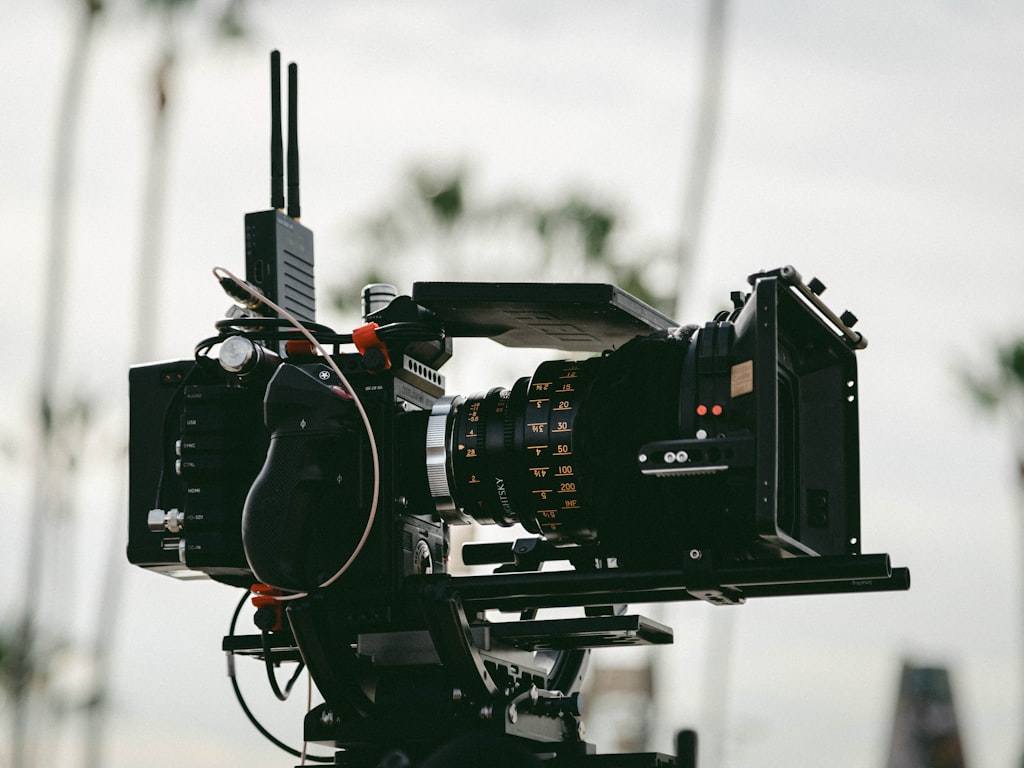
Pan, tilt, and dolly: the core movements to know
At the foundation of ai video camera motion control are three camera moves you can use immediately in prompts: pan, tilt, and dolly. These are not vague style words. They describe specific movement behavior, and models usually respond better when the instruction is clear.
A pan means the camera pivots left or right from a fixed position. Think of a tripod head rotating horizontally. If you prompt “camera pans slowly right to reveal a neon alley,” you are asking for a left-right pivot, not for the camera to physically travel through space. A tilt is the same idea vertically: the camera pivots up or down while staying in place. “Camera tilts up from boots to towering armor” is a useful way to emphasize height or scale. A dolly is different because the camera actually moves through space. A dolly-in pushes the viewer closer to the subject; a dolly-back creates distance and often reveals more environment. Film references from Storyblocks and SetHero reinforce this distinction: pan and tilt are pivots from a stationary position, while dolly involves actual camera travel.
That difference matters because prompts break when movement words are mixed loosely. If you say “zoom around the character” when you really want the camera to move in a circle, the model has to guess. If you say “slow orbit around the subject” or “camera dollies forward,” the instruction is much cleaner.
Why intentional motion looks better than constant motion
The best camera movement supports composition, story, and subject clarity. That is the whole game. A pan can reveal new information. A tilt can show size. A dolly can create immersion and depth. But if motion is added everywhere for no reason, the shot starts to feel amateur fast.
A Reddit guide bluntly framed camera movement as one of the main things that stops AI video from looking like garbage, and that tracks with real output. Static shots can work, but random motion often looks worse than no motion at all because it muddies the frame and competes with the subject. Spinning, purposeless shaking, and erratic direction changes are especially risky because they introduce instability that many generators struggle to resolve cleanly.
Controlled motion does the opposite. It guides the eye. It makes the frame feel designed. If your subject stays readable while the camera moves with purpose, the clip instantly feels more professional. That is why strong ai video camera motion control is less about spectacle and more about discipline. You are not trying to prove the model can move. You are using movement to make the shot land.
A practical way to judge a move is simple: if the camera motion were removed, would the shot lose meaning? If yes, the move is probably motivated. If no, it may just be decoration. Start with one clear movement, tie it to the subject, and make sure the framing still works during the motion. That is the baseline for better shots.
How to prompt ai video camera motion control with clear movement language
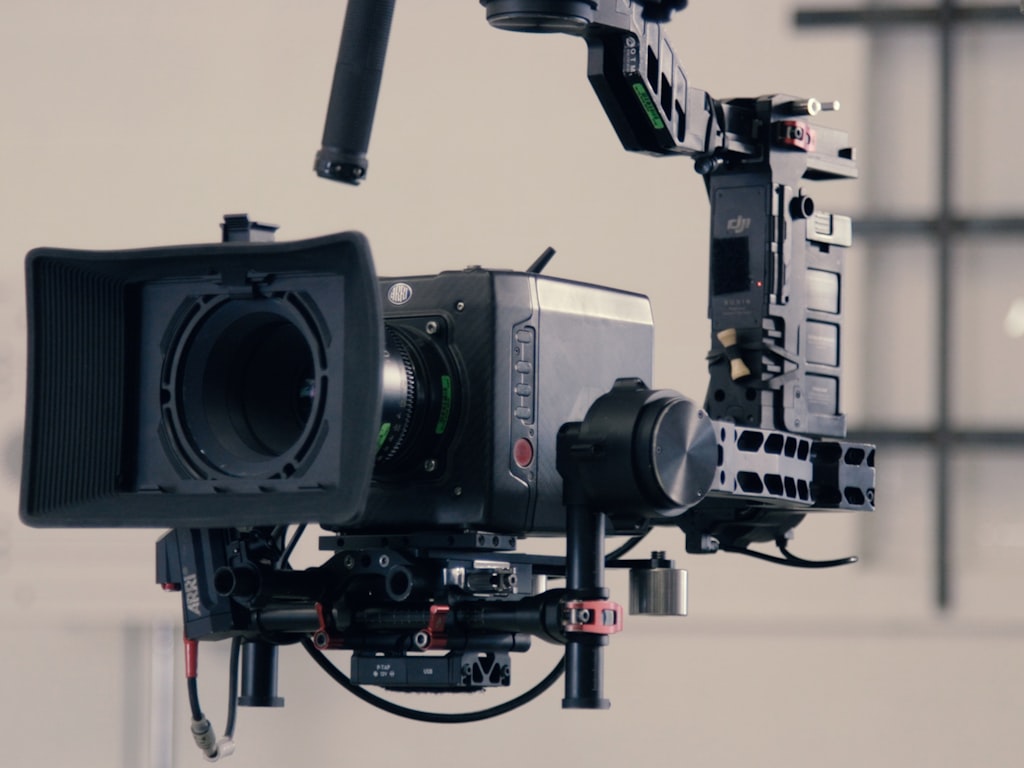
Use active verbs that describe motion precisely
Prompting camera movement gets dramatically easier when you use active verbs and direct camera constructions. Instead of vague style language like “cinematic motion” or “dynamic camera,” use motion words the model can actually act on: glides, drifts, swirls, rushes, or plain instructions like camera pans left, camera tilts up, camera dollies in. Practical prompting guides consistently recommend this because motion is easier for models to follow when it is phrased as a concrete action.
The key is precision without overload. “Camera glides slowly forward” is much easier to interpret than “epic cinematic dramatic dynamic immersive movement.” One tells the system what to do. The other mostly signals mood.
Good prompts also separate camera movement from subject movement. If the character is walking and the camera is moving too, define both roles clearly. Morph Studio highlights this broader style of motion control by supporting action commands such as “step forward, change background, or raise the arm.” That is useful because camera motion and character motion often need to work together. For example: “A detective steps forward through drifting fog, camera dollies backward slowly, medium shot, wet street remains consistent.” The camera retreats while the subject advances, creating depth without confusion.
Prompt formulas for smooth cinematic movement
A reliable prompt structure is:
subject + action + camera move + speed + framing + environment continuity
That formula keeps the shot readable and gives you a repeatable system for iteration. Here is what that looks like in practice:
- A woman in a red raincoat looks up at a giant hologram, camera tilts up slowly, starting in medium shot, neon city reflections stay consistent
- Old train arriving at the station, camera pans right at a steady pace, wide framing, dusk lighting remains constant
- Astronaut walking across icy terrain, camera dollies in gently, centered framing, blue moonlight and snow texture remain consistent
Every part of that structure matters. The subject tells the model what to prioritize. The action adds life. The camera move defines the shot. The speed controls intensity. The framing protects readability. The environment continuity reduces drift in lighting and background detail.
It is usually better to request one clear move at a time instead of stacking multiple directions into a single prompt. If you write “camera rushes forward, then pans left, then orbits, then zooms out while the character turns,” you are asking the generator to solve too many things at once. That often leads to muddier output, broken anatomy, or confused composition. If you want multiple moves, break them into separate clips.
This is especially important if you are testing an open source transformer video model or a lighter image to video open source model that may be less forgiving than premium tools. Simpler prompts produce cleaner data for your own iteration too. You can compare a dolly-in version against a pan version and quickly see which move serves the scene better.
For ai video camera motion control, clarity beats complexity almost every time. Give the model one strong idea, define the speed, protect the framing, and let the movement do one job well.
Best ai video camera motion control moves to use in different scenes
When to use pan, tilt, dolly, zoom, and orbit-style moves
The easiest way to choose camera movement is to start with the scene goal. If the goal is a reveal, use a pan. Pans are great when you want to uncover a new part of the frame, introduce a second subject, or lead the eye from one visual anchor to another. “Camera pans right to reveal the ruined castle behind the treeline” gives the movement a job.
If the goal is scale, use a tilt. Tilting up makes buildings, creatures, statues, and cliffs feel larger because the frame climbs through vertical space. Tilting down can reveal danger below or establish a drop. A slow upward tilt works especially well for giant sci-fi architecture, towering mechs, or fantasy monsters.
If the goal is depth and immersion, use a dolly. A dolly-in makes the viewer feel physically pulled into the scene, which is perfect for tension, intimacy, or discovery. A dolly-back can isolate a subject or reveal the world around them. Because dolly movement involves actual camera travel, it often creates a stronger sense of space than a simple pivot.
A zoom is best used for emphasis. It changes focal framing rather than physically moving the camera, so it feels more like visual attention than physical travel. Use it when you want to snap focus onto a face, object, or critical detail. In AI video, a restrained zoom usually works better than an aggressive one because extreme zooms can expose texture instability.
An orbit-style move circles around the subject and can create energy, showcase costume or form, or heighten drama. Use it carefully. If the environment and anatomy are unstable, an orbit can amplify those errors. It works best when the subject is strongly defined and the background is coherent.
Preset-style cinematic motions worth testing
Preset libraries are useful because they package these ideas into named moves you can test fast. Higgsfield Camera Controls advertises 50+ cinematic AI-motion presets, including Flying Cam Transition, Bullet Time, Dolly Left, and Rapid Zoom Out. Those names are more than marketing. They give you quick starting points for scene-specific experiments.
A few practical matches:
- Dolly Left: good for lateral parallax, character entrances, and stylish movement past foreground objects.
- Rapid Zoom Out: useful for a sudden reveal, scale shift, or transition from intimate detail to wide environment.
- Flying Cam Transition: strong for moving between spaces or adding momentum to a location change.
- Bullet Time: best as a stylized accent shot, especially when you want to freeze a dramatic action moment while the perspective shifts.
Choose these moves based on the shot objective, not because the name sounds cool. For tracking, use gentle lateral movement or dolly follow behavior. For tension, use a slow push-in. For scale, tilt up or zoom out. For a transition, test a flying cam or fast pullback. For a reveal, pan or dolly from behind an obstruction.
This is where ai video camera motion control becomes practical instead of decorative. You are matching movement to function. If you are experimenting with the happyhorse 1.0 ai video generation model open source transformer, a commercial app, or any open source ai video generation model, the same rule applies: decide what the shot needs first, then choose the move that does that job with the least confusion.
How to keep shots consistent across clips with ai video camera motion control
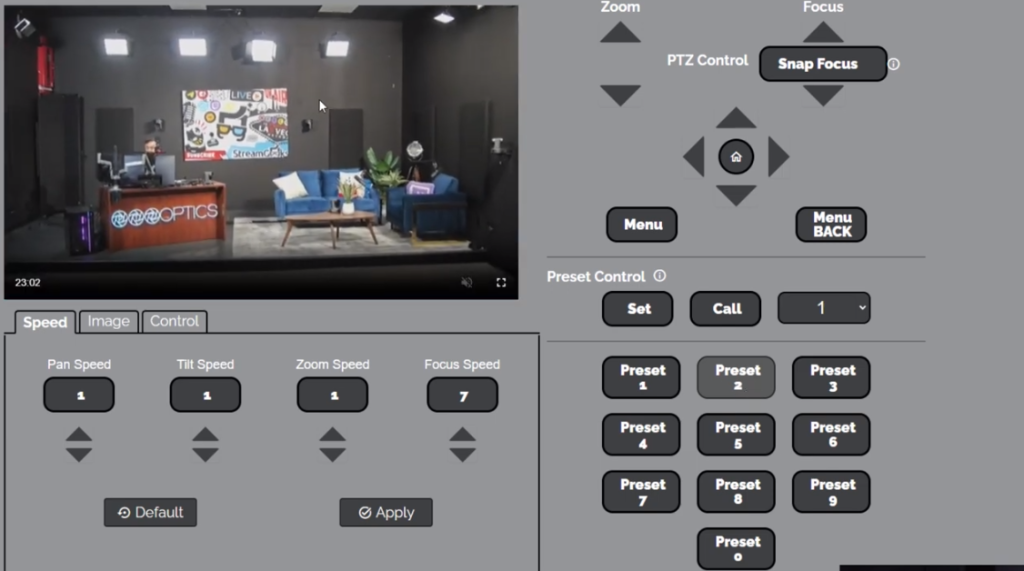
Use reference frames to anchor character and scene continuity
Camera motion only feels smooth across multiple shots when the underlying world stays stable. If the character’s face changes, the lighting jumps, or the background keeps reinventing itself, even a good move will feel broken. This is why continuity and motion control are tied together.
A practical multi-shot workflow from AI Magicx is built around maintaining character consistency, lighting, and environment across multiple AI-generated video clips. Their strongest tip is simple and extremely useful: generate the first shot, extract a frame from it, and use that frame as a reference image for later shots. That single habit anchors the next clip to something real instead of forcing the model to recreate the scene from scratch.
Use the frame that best represents the look you want to preserve. Pick one with clean facial detail, stable costume elements, readable lighting, and a strong background layout. Then feed that into the next generation step with a new movement instruction. For example, start with a static or slow dolly establishing shot. Save a frame. Reuse it for a closer push-in, a side pan, or a tilt reveal.
Build an image-first multi-shot workflow
An image-first workflow makes this even easier. Several camera control guides, including Luma-related workflows, describe uploading a still image first and then planning motion from that stable base. That gives the model a fixed visual identity before motion begins. You are no longer asking it to invent the world and animate it at the same time.
A simple workflow looks like this:
- Generate a strong still or first clip with clean subject design.
- Extract the best frame.
- Upload that frame as the reference for the next shot.
- Change only one thing: the camera move.
- Keep the same lighting, environment descriptors, and subject framing language where possible.
That process improves continuity in character appearance, wardrobe, color palette, and scene geometry. It also makes your shot progression feel intentional. You can build a sequence that goes from wide establishing shot to medium push-in to detail reveal without the scene falling apart between clips.
If you plan a multi-shot scene, write the sequence before generating:
- Shot 1: wide static or slow pan for geography
- Shot 2: dolly-in for subject emphasis
- Shot 3: tilt up for scale
- Shot 4: lateral move for transition
Then create each shot from the previous shot’s saved reference. This is one of the most reliable ways to make ai video camera motion control feel cinematic across a sequence rather than only inside a single isolated clip.
This workflow also matters when you run ai video model locally, since local pipelines often benefit from tighter planning and stronger reference discipline. And if you are evaluating an open source ai model license commercial use for production work, continuity control becomes part of the practical decision: a model is more useful when it lets you preserve visual identity from shot to shot.
Common ai video camera motion control mistakes and how to fix them
Movements that usually reduce quality
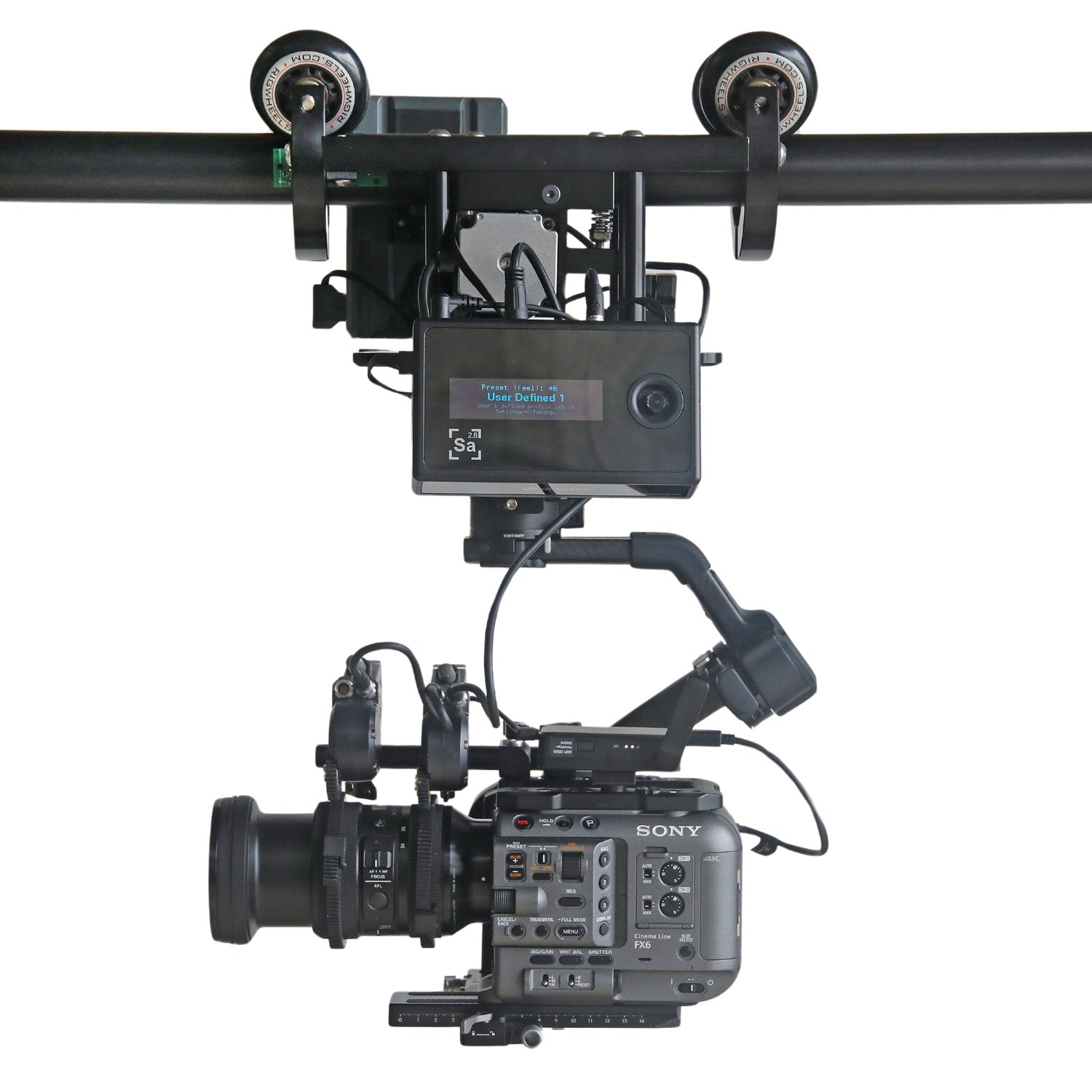
Some camera moves fail so often that they are worth avoiding unless you have a very specific reason. The big three are random spinning, purposeless shaking, and too many direction changes. These were called out directly in practical camera movement advice, and the warning is deserved. Spinning can destroy spatial coherence. Shaking often reads as generation instability instead of handheld realism. Rapidly changing direction forces the model to solve too many transitions in too little time.
Another common mistake is adding motion that fights the subject. If the camera is moving left, the subject is moving right, the background is morphing, and the framing is changing all at once, the viewer has no stable anchor. The result feels chaotic even if every individual instruction sounded exciting on paper.
Overdescribing is another hidden problem. A prompt packed with style tags, lens references, atmosphere effects, action beats, and multiple camera commands can dilute the main motion instruction. If the move keeps breaking, the prompt may simply be too crowded.
Simple fixes for cleaner, more usable output
The fix is usually simplification. Start by reducing competing instructions. Keep one motivated move per shot. If your original prompt says, “A warrior sprints toward camera while camera orbits, zooms in, shakes violently, and then pans up,” rewrite it to: “A warrior sprints toward camera, camera dollies backward smoothly, medium framing, dusty battlefield remains consistent.” That version gives the model a clear problem to solve.
If framing keeps falling apart, specify it. Add terms like centered framing, medium shot, wide shot, or subject remains in frame. If the environment drifts, repeat the continuity details: same alley, same warm sunset, same fog density, same armor color. If motion looks jerky, slow it down in the prompt: slow pan, gentle dolly-in, steady tilt.
Restraint is what makes the output usable. One motivated move per shot usually beats multiple dramatic changes in a short clip. You can always cut between shots later to create energy. It is much harder to rescue a single clip that is visually confused from the start.
When a move still fails, test the scene with no motion first. Make sure the subject, design, and background are stable. Then add the camera instruction back in. That step isolates whether the issue is scene generation or the motion request itself. For ai video camera motion control, clean inputs lead to cleaner movement almost every time.
Tools and workflows for ai video camera motion control
Preset-based tools vs custom prompt control
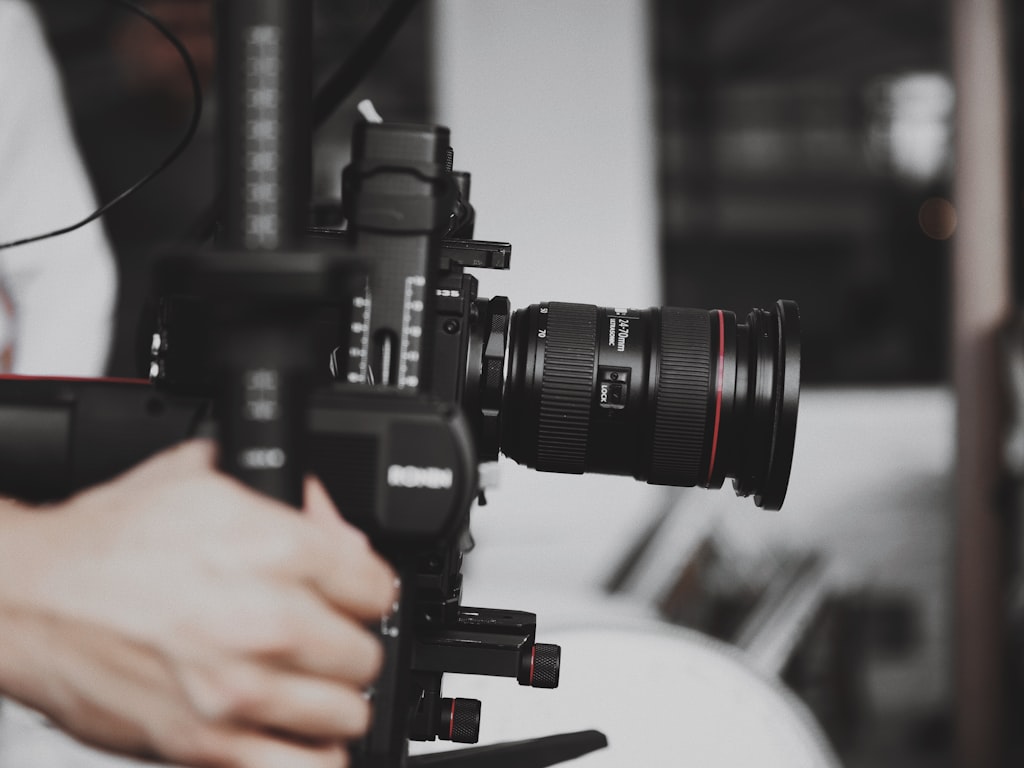
Different tools approach motion control in different ways, and knowing the difference helps you pick the right workflow. Some platforms lean on preset-based cinematic motion libraries. Higgsfield is a clear example, with 50+ cinematic AI-motion presets such as Bullet Time, Dolly Left, Flying Cam Transition, and Rapid Zoom Out. Presets are excellent when you want fast iteration, recognizable move patterns, and repeatable output. If you find a preset that works for your style, you can reuse it across multiple scenes and keep the motion language consistent.
Other platforms emphasize custom command-based control. Motion systems like Morph Studio’s are useful when you need specific action instructions such as “step forward,” “change background,” or “raise the arm.” That matters because camera motion often has to coordinate with what the subject is doing. A push-in on a still subject feels different from a push-in on a subject stepping toward frame.
Luma-style camera planning from uploaded images is another valuable capability. Being able to upload a still and direct movement from that image is one of the most practical features to look for because it stabilizes the scene before motion begins. Whether you are using a closed platform or an open source transformer video model, image-first planning usually increases control.
A repeatable workflow for faster iteration
A simple, repeatable workflow saves time and gets better results than improvising every shot from zero.
1. Start with a still.
Generate or upload a strong base image with clean subject design, stable lighting, and readable environment. This is your visual anchor.
2. Choose one camera objective.
Do not start with “make it dynamic.” Start with a purpose: reveal, tension, scale, tracking, or transition. Then choose the move that matches that purpose.
3. Write a focused prompt.
Use the formula: subject + action + camera move + speed + framing + environment continuity. Keep it to one main camera instruction.
4. Generate a short test clip.
Use a brief duration first. You are evaluating movement quality, not making the final cut yet.
5. Save a strong frame.
When the clip works, extract the cleanest frame. This becomes the reference for the next shot.
6. Reuse that frame for follow-up shots.
Build your sequence image-first: same character, same light, same world, different camera move.
7. Compare moves systematically.
Try the same scene with a pan, then a dolly, then a tilt. You will quickly see which move best serves the shot.
8. Keep a library of successful motion prompts and presets.
This becomes your own camera language. Over time, you will know exactly which wording gets the cleanest slow push-in, side reveal, or vertical scale shot.
This workflow works across commercial tools, local setups, and experimental pipelines. If you run ai video model locally, it helps you conserve time and compute. If you are evaluating an image to video open source model, it gives you a controlled way to benchmark motion stability. If you are selecting an open source ai model license commercial use option for client work, repeatable motion and continuity are part of what make a model production-ready.
Conclusion
Better AI video shots usually come from smaller, smarter camera decisions. A clear pan for a reveal, a measured tilt for scale, or a slow dolly-in for tension will almost always outperform random movement that has no job. The strongest results come from simple, purposeful prompts, stable reference images, and one clear movement that serves the shot.
If you want your clips to feel more cinematic right away, start with the basics: use direct movement language, keep the subject readable, and build multi-shot sequences from saved reference frames. Generate a strong first image or clip, extract a clean frame, and use that visual anchor for the next shot. That one workflow shift can improve character consistency, lighting continuity, and the believability of motion across an entire sequence.
Whether you are testing presets like Dolly Left or Bullet Time, experimenting with custom action commands, or pushing an open source setup, the winning pattern stays the same: control the camera with intent. When the movement supports the composition instead of fighting it, the shot finally starts to look like it was designed.