 HappyHorse Model
GPU Requirements for AI Video Models: VRAM Guide for Local Generation
If you want to run an AI video model locally, VRAM matters more than almost any other hardware spec because it determines what model size, resolution, and workflow you can actually use.
gpu vram requirements ai video model: The VRAM Numbers That Actually Matter
Why VRAM is the main bottleneck for local AI video
When you start pushing into local video generation, GPU memory becomes the wall you hit first. The model weights, intermediate tensors, frame data, and any extra inference tricks all need to sit in VRAM while the GPU works. If that memory fills up, performance drops hard because data has to be shuffled around instead of staying resident on the card. That slowdown is why a GPU that looks fine on paper for gaming or editing can still struggle badly with AI video inference.
System RAM helps, but it does not replace GPU memory. A setup with 32 GB of system RAM can feel much smoother overall for loading projects, caching assets, and multitasking, yet it still won’t magically make a 12 GB card behave like a 24 GB card when an AI video model needs more space. That distinction matters because a lot of buyers overestimate what extra system memory can do for local generation.
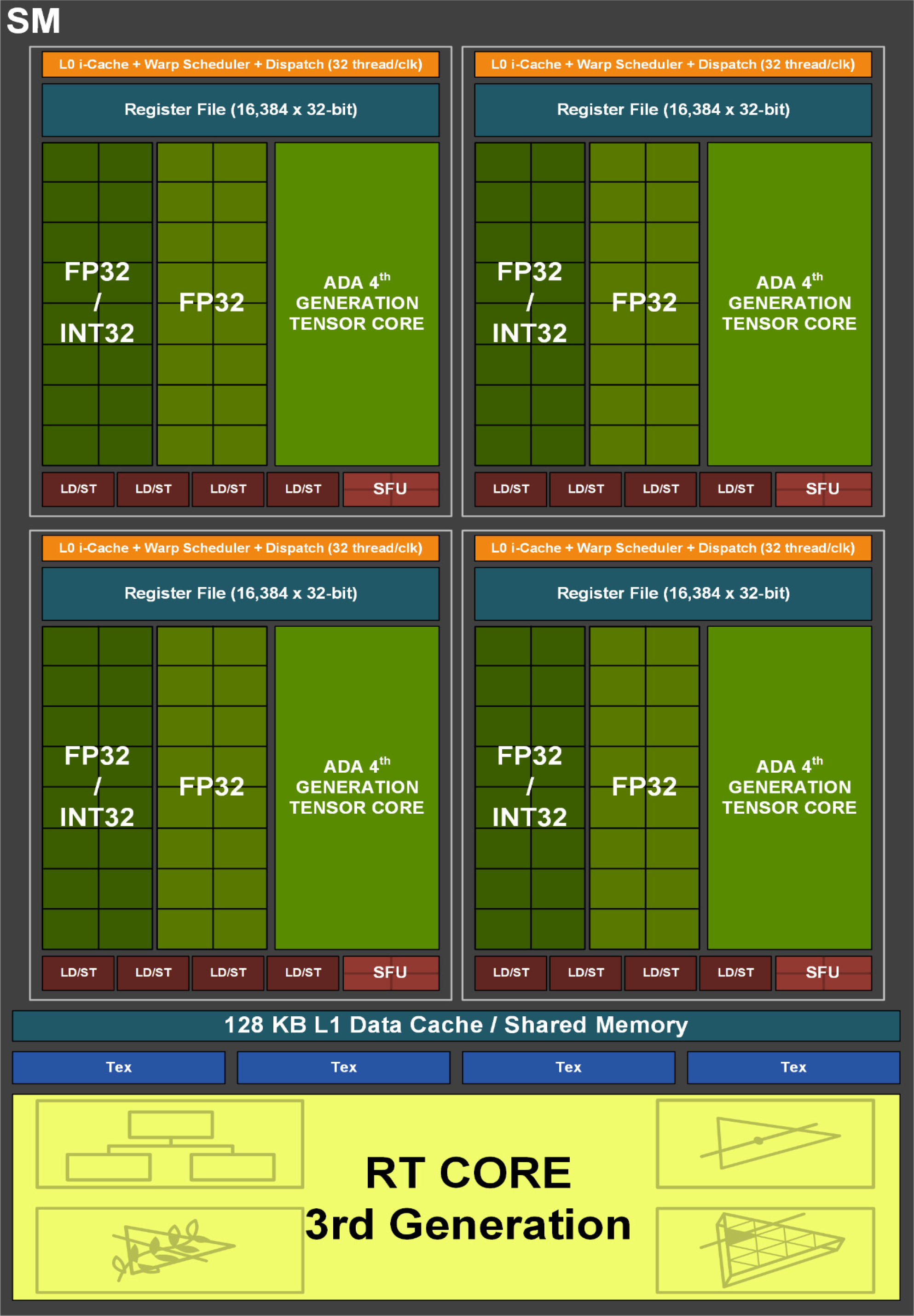
NVIDIA’s own positioning around local AI makes the trend pretty obvious. Its RTX stack is framed around running models locally, and at the workstation end, the RTX 6000 Ada Generation goes up to 48 GB of VRAM. That kind of capacity exists for a reason: serious local AI pipelines, especially video-oriented ones, eat memory fast.
What 8 GB, 12 GB, 16 GB, and 24 GB+ really unlock
The practical thresholds are more useful than spec-sheet theory. At 8 GB, you are not locked out of AI entirely. Community experience consistently shows that 8 GB is enough for a lot of image generation tasks, and some users rightly call 8 GB cards “AI workhorses” for lighter use. If your goal is testing small image tools, learning ComfyUI-style workflows, or trying lower-scale experiments, 8 GB can still be productive. For AI video, though, it’s much tighter. You’ll spend more time compromising on resolution, clip length, settings, and which checkpoints you can load.
At 12 GB, things open up quite a bit. Multiple community reports describe 12 GB as enough for a lot of creative work, and that tracks with real-world use. It’s a strong entry point for many image models, some image-to-video experiments, and lighter open source AI video generation model workflows. But 12 GB is not a promise of high-quality local video generation. One of the clearest recurring points from user reports is that 12 GB can do many tasks, just not every demanding video task at the quality most people picture.
At 16 GB, you hit a much safer middle ground. This is where local AI starts feeling less like a constant memory workaround and more like a usable workstation. A lot of builders aiming to run AI locally specifically target 16 GB VRAM, and for good reason: it gives more room for better checkpoints, longer clips, stronger settings, and fewer out-of-memory errors.
At 24 GB and beyond, you move from “can run” to “has headroom.” That matters for larger open source transformer video model releases, higher resolutions, and workflows where you are juggling generation with upscaling, editing, or other tools. And if you’re eyeing very large models, memory demands can get extreme. A 20B-scale model at 16-bit inference can need around 40–45 GB VRAM, which is why 48 GB workstation cards still have a real place in local AI video.
How Much VRAM Do You Need to Run AI Video Models Locally?
Minimum viable setup for testing
If your goal is simply to test whether local video generation is for you, 8 GB can still be enough to get your feet wet. You can experiment with lightweight pipelines, reduced resolutions, short clips, and more constrained settings. That kind of setup is fine for learning node-based workflows, trying a basic image to video open source model, and figuring out how different samplers or frame counts affect results. It is not the setup I’d choose for serious local production, but it is absolutely usable for exploration.
The big thing to understand is that “minimum viable” for AI video is very different from “comfortable.” With 8 GB, you’ll likely spend a lot of time trimming ambition to fit memory. Lowering output size, reducing clip duration, switching to smaller checkpoints, or disabling extras becomes routine. If you already own an 8 GB card, testing first makes sense. If you are buying new specifically for AI video, I would not treat 8 GB as the target.
Recommended VRAM by workflow type
For practical use, 12 GB is where many creators start getting decent flexibility. It is often enough for a lot of tasks: image generation, selective image-to-video experiments, some shorter clip workflows, and general creative work around AI. Community comments also point out that 12 GB supports efficient video editing and 3D tasks, which is useful if your machine handles more than one role. One user even reported creating 4K videos on a 12 GB card in about 20 minutes, which shows that specific workflows can work surprisingly well when the pipeline is optimized.
That said, 12 GB is still not a guarantee for high-quality local AI video generation. Once you move toward longer clips, more demanding inference modes, heavier checkpoints, or higher resolutions, the margin gets thin fast. If your main goal is to run AI video models locally on a regular basis rather than occasionally generate still images, 16 GB is the safer target. It offers noticeably more breathing room for open source AI video generation model workflows and reduces the amount of constant parameter juggling.
For higher-resolution outputs, more VRAM almost always helps. Community guidance on content creation keeps repeating the same practical truth: for high-resolution content, the more VRAM you can get, the better performance tends to be. That applies directly to local AI video, where every jump in detail multiplies memory pressure.
If you plan to multitask with other AI tools at the same time, VRAM headroom matters even more. Running generation alongside upscalers, face detailers, frame interpolation, or even a separate local model can eat memory unexpectedly fast. This is also where large-model inference becomes a real dividing line. Some 20B-scale models need roughly 40–45 GB VRAM at 16-bit inference, so if you want freedom to experiment with larger checkpoints or future model families, 24 GB is a good enthusiast tier and 48 GB-class hardware is the serious workstation tier.
Best GPU VRAM Tiers for AI Video Models: 8 GB vs 12 GB vs 16 GB vs 24 GB+
What you can realistically do at each tier
An 8 GB card is the “use what you have” tier. It is not dead weight, and it is not useless for AI. You can still do productive work with image generation, learn your tooling, and test smaller or lighter video pipelines. If you already own one, keep it and experiment before assuming you need an upgrade. Just expect real limits once you try to push video length, resolution, or model complexity.
A 12 GB card is the first tier I’d call broadly practical for creators who want one machine for several jobs. It is often treated as the baseline sweet spot because it can handle a lot of creative workflows without immediately falling over. This tier makes sense for trying an open source ai video generation model, exploring image-to-video setups, building short clips, and mixing in editing or 3D work. Still, AI video is harsher on memory than most image generation tasks, so 12 GB is best viewed as capable but not luxurious.
A 16 GB card is where local AI video starts to feel intentionally equipped rather than barely supported. This is the tier I’d recommend for someone whose main priority is to run ai video model locally with fewer compromises. You get better odds of running stronger checkpoints, more room for higher settings, and less frustration when one workflow needs a bit more memory than another.
At 24 GB+, you enter the comfort zone for demanding hobbyist and prosumer pipelines. This is where larger open source transformer video model experiments become much more realistic, especially if you want longer clips, stronger quality settings, or extra steps like upscaling and post-processing on the same machine. Fewer memory-related compromises means more time iterating and less time troubleshooting.
When paying for more VRAM is worth it
Paying extra for VRAM is worth it when your workload is clearly video-first rather than image-first. Every extra GB buys flexibility: more checkpoint options, better high-resolution behavior, longer clips, and more tolerance for toolchain changes. That last point matters because open tools move fast. A workflow that fits neatly today may get replaced by a heavier but better checkpoint next month.
If your budget is tight and your interest is casual, 12 GB still gives solid value. If you know you want repeated local generation and don’t want to fight memory constantly, 16 GB is usually the smarter spend. If you care about headroom, longer-term flexibility, or experimenting with things like happyhorse 1.0 ai video generation model open source transformer releases and other future-heavy pipelines, 24 GB+ starts making financial sense quickly.
How Resolution, Model Size, and Workflow Change gpu vram requirements ai video model
Why high-resolution video needs more VRAM
Resolution is one of the fastest ways to blow past your memory budget. Bigger frames mean more pixels to process, more activations to hold, and more strain across the entire generation pipeline. That is why a GPU that seems fine at modest settings can suddenly fail when you push toward sharper, cleaner output. In practice, higher-resolution content almost always behaves better with more VRAM, and that lines up with repeated user reports from creators comparing real workloads.
For local AI video, this has a direct impact on quality expectations. If you want more detailed outputs, smoother motion across longer clips, or less aggressive downscaling in your workflow, VRAM should be your first priority. Small gains in core count or clock speed rarely compensate for simply not having enough memory to hold the workload comfortably.
Why model size and precision can spike memory use
Model size matters just as much as resolution. Smaller local models can be surprisingly manageable. Some published local AI memory breakdowns show examples like LLaMA 3.2 1B fitting into around 4 GB VRAM and LLaMA 3.2 3B around 6 GB. Those aren’t video models, but they illustrate the basic scaling rule: as parameter counts rise, memory needs jump fast.
Once you move into much larger models, especially at higher precision, the numbers become dramatically different. A 20B model at 16-bit inference can require around 40–45 GB VRAM. That gap between a few gigabytes and forty-plus is the reason spec advice has to be tied to the exact model family and inference mode you want to use. Precision settings, quantization, frame count, and extra pipeline components all change the final requirement.
Here’s the most useful rule of thumb: if you want more detail, longer clips, or larger open source AI video generation models, prioritize VRAM over minor improvements in other specs. For gpu vram requirements ai video model decisions, memory is usually the thing that determines whether a workflow launches at all. Faster compute helps after the model fits. VRAM determines whether it fits in the first place.
Run AI Video Model Locally: Matching Your GPU to Open Source Video Tools
Choosing hardware for open source AI video generation models
When you shop for a GPU, think in terms of tool flexibility instead of one benchmark. An open source ai video generation model can have very different memory behavior depending on checkpoint size, implementation, frame settings, and whether you add extras like upscaling or control modules. That’s why headroom matters so much. A card that technically runs one model may still feel cramped across a broader toolkit.
If you’re browsing new releases, including niche projects and things tagged as an open source transformer video model, the safest assumption is that requirements will vary wildly. Some workflows are optimized and surprisingly lean. Others are hungry from the start. That makes 12 GB a decent testing tier, 16 GB a stronger regular-use tier, and 24 GB+ the tier for people who want to chase new tools without checking memory limits every time.
Hardware choice also affects whether your current GPU is good enough for testing, regular use, or serious production. Testing means short clips, lower expectations, and more compromise. Regular use means you can return to the workflow often without fighting the machine. Serious production means you have enough headroom to iterate, render, upscale, and keep options open.
What to expect from image-to-video open source model workflows
Image-to-video pipelines are often the entry point because they let you start from a still frame and animate from there. That can be a very smart way to work on smaller cards, especially if you already have a generation pipeline for still images. But even a lighter image to video open source model can hit VRAM limits sooner than expected once you increase output quality, frame count, or checkpoint size.
This is also where buyers get tripped up by adjacent workloads. A GPU that feels great for video editing or 3D may still run into trouble with AI inference. Community reports note that 12 GB can be very usable for editing and 3D tasks, but AI video generation can still demand more memory sooner because the model itself has to sit in VRAM while generating. So if your card handles timelines and renders well, don’t assume it automatically has equal headroom for local model inference.
One more practical note: if commercial use matters, check the open source ai model license commercial use terms before you invest around a specific workflow. Some people buy hardware for a model stack they later learn they cannot use the way they planned. Matching your GPU to the right tools includes matching it to the right license.
Practical Buying Guide: The Right GPU VRAM for Your AI Video Workflow
Best-fit recommendations by budget and goal
If you already own an 8 GB card, keep it if your main goal is learning, testing, and running lighter experiments. It is still a valid starting point for image generation, simple automation, and limited AI video trials. Upgrade only after you know the workflows you want are consistently running into memory limits.
If you are buying specifically for mixed creative work and occasional local AI video, 12 GB is still one of the strongest value tiers. It can handle a lot, and it often lands in the sweet spot for budget-conscious builders who want more than image generation but are not trying to run massive checkpoints. Just go into it knowing that high-quality local video generation is where 12 GB starts to feel restrictive.
If AI video is the actual priority, aim for 16 GB. This is the tier that most often makes sense for people who want to run models locally with fewer compromises. You get more room for better settings, more workflow flexibility, and less dependence on constant optimization tricks. Pair that with 32 GB system RAM and the machine becomes much nicer to use overall, though that extra system memory still does not remove the need for strong GPU VRAM in demanding workloads.
If you want long-term flexibility, larger models, longer clips, or freedom to try future-heavy pipelines, invest in 24 GB+. That tier is expensive, but it buys time, convenience, and compatibility. If you can see yourself moving deeper into local video generation over the next year or two, extra VRAM ages better than chasing small speed gains.
Upgrade checklist before you buy
Before buying anything, answer five practical questions. First, what resolution do you actually want to generate at? If the honest answer is higher-resolution output with good detail, budget for more VRAM immediately. Second, what model size do you want to run? Small local models and giant transformer-based video models live in completely different memory worlds.
Third, are you committed to local generation, or are you happy to use cloud tools for heavier jobs? If cloud is acceptable, you can save money and keep a smaller card locally. If local is the goal, buy with headroom. Fourth, will you multitask with upscalers, editors, 3D tools, or other AI apps at the same time? If yes, don’t cut VRAM too close. Fifth, do you want room for future open source models? If the answer is yes, buy more memory than today’s minimum.
For most people, the cleanest buying logic is simple. Buy for your current workflow if your budget is strict and your needs are clear. Buy extra VRAM if you know you are going deeper into local AI video, want fewer compromises, or want to stay flexible as better open source tools arrive. The best purchase is the one that avoids a second purchase six months later.
Conclusion

For local AI video, VRAM is the spec that decides what you can realistically run, how much quality you can push, and how often you’ll hit frustrating limits. An 8 GB card can still be useful for testing and lighter AI work. A 12 GB card is often enough for many creative tasks and some video workflows. A 16 GB card is the safer target if local video generation is a real priority. And 24 GB or more is where serious headroom starts, especially for bigger open models, longer clips, and fewer compromises.
The simplest rule is this: buy enough VRAM for the video quality and model size you want right now, then add extra headroom if you plan to run larger local open source video models over time.