 HappyHorse Model
HappyHorse Joint Audio Generation: How It Works
If you want to understand happyhorse audio video generation before spending time on prompts, the fastest shortcut is simple: separate what the official site clearly shows from what outside summaries claim, then test the audio option on short clips where sync problems are easy to spot. Right now, HappyHorse 1.0 is easiest to think of as a cinematic AI video generator with an integrated audio path inside the same workflow. The homepage is clear about the video side: text or image inputs, native 1080p output, motion synthesis, multi-shot storytelling, seamless transitions, realism, and strong prompt adherence. It also visibly includes a “Generate audio” option, which matters because it tells you audio is not an afterthought bolted on in post.
That distinction saves time. If you assume the tool is already a fully documented joint audio-video model with frame-perfect sound logic, you may over-prompt and misread the results. If you treat it as a video-first system with audio generation available in the same run, you can test it the smart way: short scenes, clear timing cues, obvious motion, and compact prompts that make it easy to judge whether the sound actually matches the clip. That is the practical angle that helps most when you are deciding whether to use it for cinematic mood shots, social teasers, concept videos, or fast idea validation.
What HappyHorse Audio Video Generation Actually Includes
What the official product page confirms
The official HappyHorse homepage gives you a solid baseline for what the product definitely offers today. HappyHorse 1.0 is presented as an AI video generator that turns text or images into 1080p cinematic video. The page repeatedly emphasizes motion synthesis, multi-shot storytelling, seamless transitions, realism, and prompt adherence. Those claims are concrete enough to shape how you use it: write prompts that describe visible action, scene flow, and camera movement, because the product is clearly optimized around cinematic video construction rather than static frame generation.
The interface itself adds another important clue. A visible “Generate audio” option appears in the workflow, which strongly suggests audio can be created alongside the video inside the same generation experience. That is more useful than vague marketing language because it tells you where to start testing. If the UI exposes audio as a generation choice, then the right first experiment is not exporting silent clips and fixing everything later. It is enabling audio from the start and seeing whether the resulting output tracks the scene’s timing and mood.
The homepage also includes actionable platform metrics. It advertises native 1080p resolution, roughly 10-second average generation speed, a 99.5% success rate, and 50+ visual styles. It highlights free online use, no sign-up required, no credit card required, and free daily credits. There is also a visible preset example, “Pro 16:9 5s Balanced,” which gives you a very practical starting point for controlled tests. If you want reliable prompt feedback, use that kind of short balanced setup first before trying longer clips or more stylized scenes.
What secondary sources suggest about joint generation
Where things get more interesting is the audio-video relationship. Secondary summaries describe HappyHorse as capable of jointly generating synchronized video and audio from prompts, sometimes using language like “production-ready video clips” and synced multimedia output. Those descriptions appear in promotional or summary-style sources rather than primary technical documentation, so they are helpful signals, not hard proof of exact internals.
That distinction matters for anyone searching terms like happyhorse 1.0 ai video generation model open source transformer or trying to infer whether the system behaves like an open source ai video generation model. Public materials in the research set do not confirm a full technical mechanism for how audio and video are fused under the hood. What they do support is this narrower, practical reading: HappyHorse is publicly presented as a strong video generator, and the interface visibly includes audio generation in the same workflow.
So the best current takeaway is straightforward. Use HappyHorse as a video-first tool with an integrated audio option unless the interface or official documentation explicitly states more. If the output comes back with sound that feels timed to motion and pacing, great—treat that as observed behavior. If you need proof of architectural joint generation, the available primary evidence is not there yet. That keeps your expectations calibrated and your testing focused on what actually matters: whether the clip looks coherent, sounds appropriate, and follows the prompt.
How HappyHorse Audio Video Generation Appears to Work in Practice
The likely generation flow
Based on the public evidence, the most likely HappyHorse workflow is simple and efficient. You start with either a text prompt or an image prompt, choose a generation mode, enable audio, and generate a clip that returns with matching sound in the same output flow. That aligns with what the homepage clearly advertises: text-to-video and image-to-video creation, cinematic control through prompt structure, and a visible audio generation option built into the interface.
The official guidance style is especially useful here because it tells you how the system expects instructions. The homepage encourages prompts built around scene, motion, lighting, and camera. That means the generation process probably responds best when you define not just what is in the frame, but what is happening over time. For example, “fog rolls through a pine valley at sunrise, the camera glides forward, warm side light catches the treetops” is much more actionable than “beautiful mountains.” If audio is generated in the same run, those motion and timing cues also give the sound side better context.
A practical workflow looks like this: write one compact prompt, choose a short format such as the visible 5-second mode, toggle audio on, and render. Then review the result for three things immediately—motion coherence, timing, and whether the sound belongs to the scene. If the clip shows waves crashing and the audio swells with that movement, the integrated pipeline is doing its job well enough for fast production use.
What synchronized output means for users
For users, synchronized generation does not need to mean perfect technical magic. It means the audio should feel timed to the scene’s motion and pacing instead of sounding like unrelated stock sound pasted on after export. If a product reveal has a slow camera push and a clean visual crescendo, the sound should support that rise. If an action shot cuts fast, the soundtrack or effects should track the urgency. That is the standard worth testing in practice.
There is also an unverified but notable technical claim circulating in a verification-style writeup: HappyHorse may use a 15B-parameter unified 40-layer self-attention Transformer with no cross-attention, reportedly capable of joint video and audio generation. That is interesting commentary, especially for people searching terms like open source transformer video model, image to video open source model, or wondering whether they can run ai video model locally. But it remains unconfirmed technical commentary, not official architecture documentation.
The useful move is to translate that uncertainty into a testing rule. Judge the feature by output behavior, not by architecture claims. Does the clip maintain scene consistency? Does the pacing of the sound match the camera and motion? Does the prompt produce both visual and audio cues that belong together? Those checks tell you more than speculative model diagrams. If HappyHorse gives you synced-feeling outputs on short, well-structured prompts, then the workflow is already valuable whether or not the full internals are public.
How to Prompt HappyHorse for Better Audio and Video Results
A prompt formula that matches the interface
The cleanest prompt formula for HappyHorse follows the official guidance style: scene + motion + lighting + camera + audio context. That matches how the homepage frames generation and gives the model the kinds of cues it appears built to use. Start with the subject and environment, then describe movement, then define the visual mood, then specify camera behavior, and finally add natural sound cues without turning the prompt into a script.
A strong base pattern looks like this: “[Scene/subject], [motion/action], [lighting/time/weather], [camera movement/lens feel], [audio ambience/rhythm/intensity].” For example: “A black sports car emerges from a tunnel onto a rain-slick coastal road, water sprays from the tires, blue-hour lighting with reflections on the asphalt, low tracking camera then a fast side pan, deep engine presence with wet road ambience and a rising cinematic pulse.” That prompt gives the generator visual structure and enough audio context to anchor the sound.
The key is to add audio-relevant details naturally. Use words like ambience, echo, distant traffic, crowd energy, wind intensity, pulse, percussion, soft mechanical hum, or swelling impact. Timing words also help: sudden, gradual, rhythmic, accelerating, fading, on impact, as the camera pushes in. These cues make happyhorse audio video generation more likely to return sound that fits the clip instead of generic backing audio.
Keep prompts specific but compact, especially if you are using a short mode like the visible 5-second setup. In very short clips, too many instructions usually reduce coherence. You do not have enough runtime for six scene changes, three camera moves, weather shifts, and detailed sound design. Pick one scene, one main motion idea, one lighting mood, and one or two audio cues.
Prompt examples for synced scenes
For a cinematic landscape shot, use something like: “A drone glides over a snowy mountain ridge at sunrise, mist moves through the valley below, soft golden light with crisp shadows, slow forward aerial camera, quiet wind ambience with distant low cinematic swell.” This works because the sound cue is tied to scale and movement, not pasted on as a separate idea.
For an action sequence: “A cyberpunk courier sprints through a neon alley while hover bikes streak past, puddles splash and signs flicker, high-contrast night lighting, handheld chase camera with quick whip pans, urgent city hum, sharp pass-by sounds, fast rhythmic tension.” That prompt tells the generator what should be moving and how intense the sound should feel.
For a product reveal: “A premium smartwatch rotates above a dark reflective surface, tiny droplets bead and slide across the metal frame, dramatic studio rim lighting, slow macro push-in ending on the display, clean futuristic electronic shimmer with subtle impact accent at the final reveal.” This gives a simple audio arc that matches the visual crescendo.
For a character moment: “A young woman stands under a station platform at dusk reading a message, trains blur in the background, cool overhead lights and soft rain reflections, gentle dolly-in camera, muted station ambience, distant train rumble, intimate emotional tone.” This is the kind of prompt where restrained sound cues often work better than trying to force music, effects, and dialogue all at once.
If you want cleaner evaluations, keep one prompt version focused on visible motion and one version with slightly richer audio language. Generate both and compare sync, pacing, and adherence. That is the fastest way to learn what the tool responds to.
HappyHorse Audio Video Generation Settings, Speed, and Output Quality
What the current public metrics tell you
The current public metrics give you a good operating profile for HappyHorse. The homepage claims native 1080p resolution, roughly 10-second average generation speed, a 99.5% success rate, and 50+ visual styles. Those are not just marketing bullets; they help you choose how to test. Native 1080p means you can evaluate fine scene detail, movement readability, and whether stylized outputs still hold up at a usable delivery resolution. A roughly 10-second average generation speed suggests the tool is built for quick iteration, which is exactly what you want when testing prompt changes for sync and pacing.
The 99.5% success rate claim is useful mainly as a workflow expectation. It suggests you should be able to run several small experiments in a row without planning around frequent failures. That matters when you are trying to isolate one variable at a time, such as changing only camera motion or only the audio context. The 50+ visual styles also point toward a practical strategy: validate the concept in a neutral or balanced setting first, then branch into heavier stylization once you know the motion and audio fit are working.
How to choose settings for faster testing
For beginners, the visible UI example “Pro 16:9 5s Balanced” is probably the best starting point. It gives you a standard aspect ratio, a short duration, and a mode that sounds tuned for overall reliability rather than maximum stylization or complexity. That is exactly what you want when checking whether a prompt idea works. If the clip is only five seconds long, it is easier to judge whether the generated sound feels connected to the movement and pacing.
A strong testing loop is simple. Start with a short balanced generation. Focus on one core concept: maybe a landscape drift, a reveal shot, or a short action beat. Turn audio on. If the result has decent sync and visual coherence, then refine one dimension at a time—style, camera behavior, lighting specificity, or scene detail. If you start with a long, overloaded prompt, you will not know whether a weak result came from the concept, the pacing, the audio cueing, or simple prompt overload.
The access model also lowers the cost of experimentation. HappyHorse advertises free online use, no sign-up required, no credit card required, and free daily credits. That means you can run several short tests quickly, compare outputs, and keep only the prompts that show clear motion-audio alignment. For practical use, that is a big advantage. You can learn the tool’s behavior in one session instead of spending half your time getting through account setup or managing paid credit anxiety before you even know if the integrated audio path matches your workflow.
How HappyHorse Compares for Audio Video Generation and Leaderboards

Where HappyHorse ranks publicly
Public leaderboard references give HappyHorse a strong early positioning. According to the research notes from Artificial Analysis, HappyHorse-1.0 is reported as #1 for text-to-video without audio and #2 for text-and-image-to-video with audio. That tells you two useful things right away. First, the model is being noticed for core video quality even before you factor in sound. Second, its audio-enabled or audio-inclusive performance is at least competitive enough to rank near the top in public comparisons.
That ranking pattern supports a practical interpretation of the product. If a tool is strongest on pure video and also performs well on audio-inclusive evaluations, then it makes sense to start by trusting it for cinematic visual generation and then test whether the integrated audio is good enough for your use case. For short-form concepts, teasers, and mood-driven clips, that may be more than enough.
How to interpret leaderboard claims without overreading them
Leaderboard gaps matter, but only when you read them correctly. A Cutout.pro summary helps frame this well: in text-to-video without audio, a 60-point Elo gap may suggest a meaningful lead; in image-to-video with audio, a 1-point gap is probably statistical noise. That distinction is extremely useful because it keeps you from overreacting to tiny differences. If one model is ahead by a single point, that does not mean you will feel a real-world difference on your prompts.
The best way to use rankings is as a shortlist tool, not as proof of exact performance for every scene type. If HappyHorse is ranking near the top, it deserves testing. That is the whole point. But if you are evaluating it against another system, do the comparison on your own prompt set. Use the same four or five prompts across each tool and score them by the factors that actually matter: prompt adherence, motion realism, audio sync, generation speed, and style range.
That approach also keeps searches around open source ai video generation model, run ai video model locally, or open source ai model license commercial use in perspective. Public leaderboard positions tell you nothing about local deployment, licensing, or whether a model behaves like an image to video open source model. They tell you the hosted output quality appears competitive. For real selection, test the workflows side by side and look at the clips, not just the rank number.
Best Ways to Use HappyHorse Audio Video Generation Right Now
Fast first-test workflow
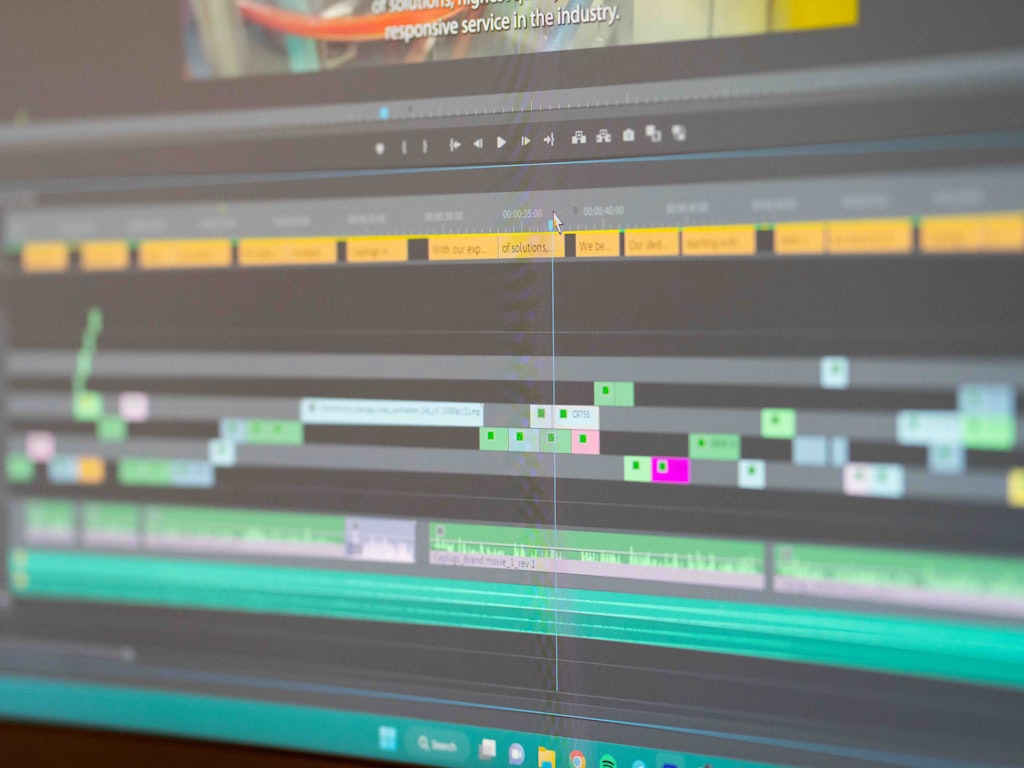
The smartest first workflow with HappyHorse is short, controlled, and ruthless about variables. Start with a short clip length, ideally something like the visible 5-second mode. Write a compact prompt using the scene-motion-lighting-camera structure. Enable audio. Generate once. Then review the clip specifically for sync: does the sound rise when the motion intensifies, does the ambience fit the environment, and does the overall pacing feel intentional rather than generic?
After that first pass, revise only one variable at a time. If the visuals are good but the sound feels vague, keep the scene the same and sharpen the audio context with words like “distant thunder,” “soft mechanical hum,” or “rhythmic impacts on each cut.” If the sound is fine but the motion is weak, change the motion and camera language without touching the rest. This one-variable rule is the fastest way to learn how the tool responds and to avoid chasing noise across too many prompt changes.
A practical first-test prompt could be: “A red motorcycle races through a desert highway at sunset, heat haze shimmers above the road, golden side light and long shadows, low tracking camera with one fast overtake shot, engine roar, rushing wind, rising cinematic tension.” It is short, visually clear, and gives the audio system enough context to either prove itself or expose its limits.
When to use it instead of separate audio tools
Integrated generation is ideal when speed matters more than perfect manual control. That makes HappyHorse especially useful for quick concept videos, cinematic mood clips, social teasers, creative pitches, and fast idea validation. If you need to know whether a scene concept works at all, one-click visual-plus-audio generation is far more efficient than rendering silent video, exporting it, opening another editor, hunting for matching sound, and then trying to sync everything by hand.
It is also a strong fit for short-form content where emotional impression matters more than detailed sound layers. A five-second product reveal, a moody landscape loop, or a dramatic character beat can benefit a lot from integrated ambience and pacing, even if the audio is not as editable as a traditional post-production workflow.
There are still clear cases where external tools make more sense. If you need precise dialogue, layered sound design, exact music control, multilingual voice direction, or frame-accurate post edits, one-click generation will likely feel limiting. The same goes for projects that require exact brand audio cues or highly controlled commercial finishing. In those cases, use HappyHorse to prototype the scene and motion fast, then rebuild or refine the audio externally.
It is also worth clearing up adjacent search intent. If you are looking for a happyhorse 1.0 ai video generation model open source transformer, an open source transformer video model, or trying to run ai video model locally, the public sources here do not confirm that workflow. The research set is focused on the hosted HappyHorse experience, not a confirmed local install, fully open-source release, or clearly documented open source ai model license commercial use path. So for now, the strongest use case is the hosted tool: fast testing, short outputs, integrated audio enabled, and evaluation based on the clip you get back.
Conclusion

HappyHorse is easiest to use well when you start from what is confirmed: strong cinematic video generation, native 1080p output, fast iteration, and an integrated “Generate audio” option inside the workflow. From there, short balanced tests tell you much more than architecture speculation. If the clip shows good motion, solid prompt adherence, and sound that feels timed to the scene, the tool is doing the job you need.
That is the practical way to approach happyhorse audio video generation right now. Use short prompts with clear scene, motion, lighting, camera, and audio context. Start in a 5-second-style setup. Review sync first. Then adjust one variable at a time. If you need deep manual sound control, bring in external tools later. But for fast concepting, mood clips, and quick social-ready experiments, HappyHorse already gives you a low-friction way to test whether integrated audio and video can carry the idea together.