 HappyHorse Model
How to Run Text-to-Video Models on Your Own GPU
If you want to run text to video model locally gpu without paying for cloud credits, the fastest path is choosing a lightweight workflow, starting with short clips, and tuning around your VRAM limits. The good news is that local video generation is no longer locked to datacenter hardware. With the right model, an RTX card, and a practical workflow, you can get real results on a home machine. The catch is that local video is still much more limited by speed than by pure compatibility.
That difference matters. A lot of people assume “can it run?” is the main question, but on consumer GPUs the better question is “can it run fast enough to be useful?” A reported RTX 3060 12GB experience on Reddit showed that video models do work, but generation time could stretch from 10 to 60 minutes depending on model, resolution, duration, and FPS. That means the smartest local setup is not the flashiest one. It is the one that reliably gives you short drafts, lets you iterate, and avoids VRAM crashes.
What You Need to Run Text to Video Model Locally on GPU
Minimum GPU and VRAM expectations
You do not need a flagship workstation card to start. Local text-to-video is realistic on consumer RTX GPUs, especially if you begin with short clips and reasonable settings. A practical baseline is an NVIDIA RTX card with at least 8GB of VRAM, but 12GB is a much safer floor if you want fewer compromises. For example, an RTX 3060 12GB sits in the “workable but patient” tier: it can run some video models locally, but render times can become long enough to feel impractical if you push duration, resolution, or frame rate too far.
A more comfortable card is something like an RTX 3090 with 24GB VRAM. In a Hugging Face discussion around ali-vilab/modelscope-damo-text-to-video-synthesis, one user reported generating a 2–5 second video in a few minutes or just under on a 3090, and added that a 3060 should also be fine for that model if you use the low-vram option when needed. That is a useful benchmark because it tells you where local generation feels smooth enough to iterate. On a 3090, short clips are a normal workflow. On a 3060, short clips are still feasible, but you need more discipline with settings.
The most realistic starting point for almost every card is 2–5 second output. Treat that as your testing zone. If your first goal is a 10-second cinematic clip at high resolution and high FPS, you are picking the hardest path first.
Software stack for a local setup
The local stack is straightforward. You need an NVIDIA GPU, current drivers, a runtime path such as Python or a packaged app workflow, the actual model files, and a UI to control generation. For many people, ComfyUI is the easiest control layer because it gives you visual workflows for both image and video generation and is already highlighted by NVIDIA as part of local RTX setups for image and video generation with tools like LTX-2.
At the minimum, your setup looks like this:
- NVIDIA RTX GPU
- Current NVIDIA drivers
- Python environment or a packaged installer
- CUDA-compatible dependencies used by the chosen workflow
- Model checkpoints or weights
- A local UI such as ComfyUI
- Enough disk space for models, outputs, and cache files
Generation time depends heavily on four variables: model choice, resolution, clip duration, and FPS. Those are not minor details. They define whether a job finishes in a few minutes or drags into the kind of 10–60 minute windows RTX 3060 users have reported. If you want to run text to video model locally gpu in a way that feels practical, build your setup around these constraints from day one instead of fighting them after the first crash.
Choose the Right Open Source Text-to-Video Model for Your GPU
Best starting models for modest hardware
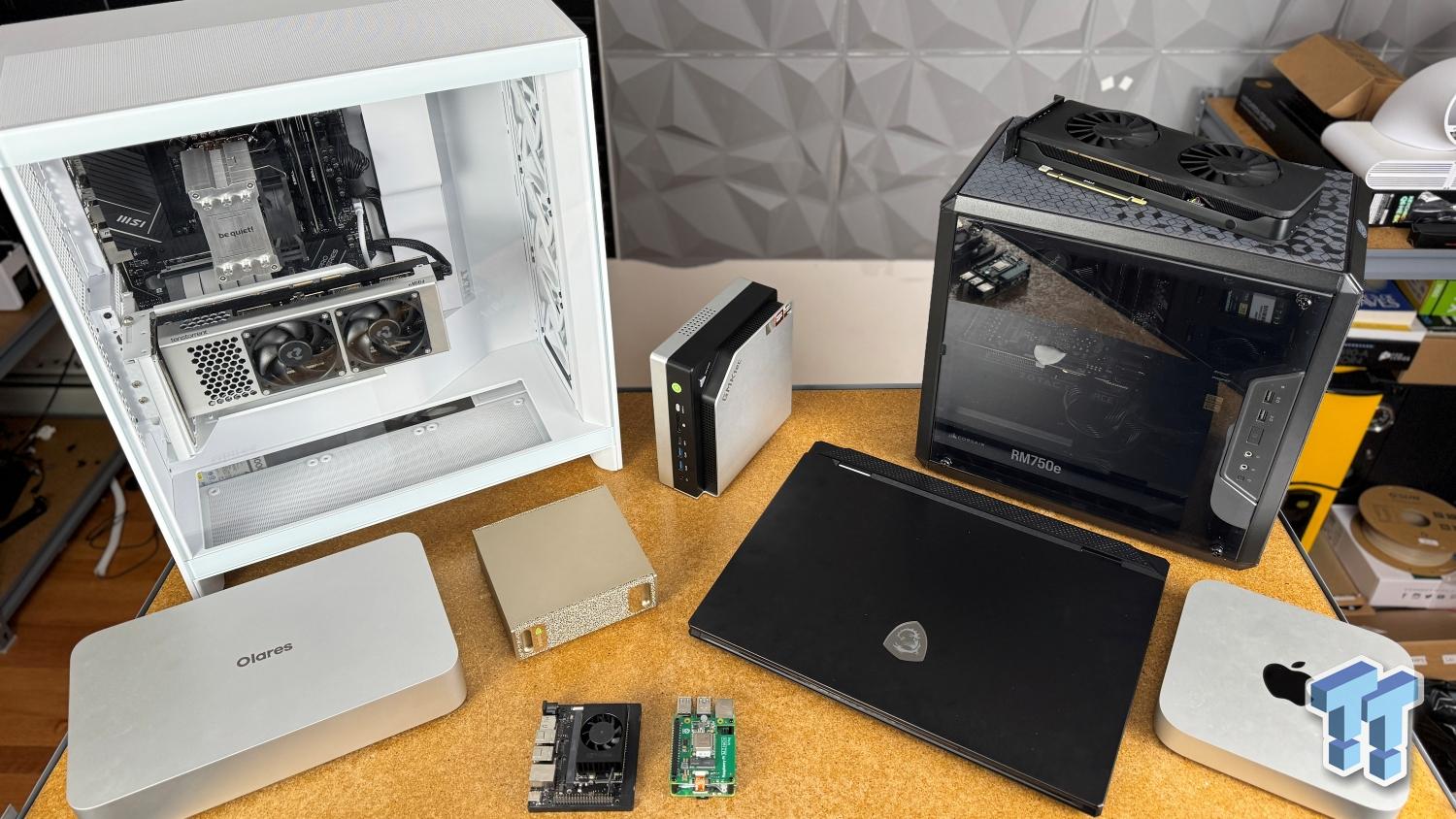
The easiest mistake is chasing the most advanced checkpoint first. The better move is to start with an open source ai video generation model that is already known to behave reasonably on consumer hardware. ModelScope-style short clip generation is still one of the most practical on-ramps because it has a long history of hobbyist testing, and the anecdotal data around 2–5 second outputs on a 3090 gives you a real-world baseline. On top of that, NVIDIA has specifically highlighted RTX + ComfyUI workflows for local image and video generation, including LTX-based setups, which makes LTX workflows another strong starting point if you want something more current and workflow-friendly.
If you are browsing model lists, prioritize these factors in this order:
- VRAM demand
- Ease of setup in ComfyUI or the model’s recommended UI
- Proven short-clip output
- Export stability
- Only then, raw visual ambition
That ranking saves a lot of wasted time. A slightly less advanced open source transformer video model that finishes reliably is much more useful than a larger checkpoint that crashes every third run. The same logic applies if you are tempted by niche options such as a happyhorse 1.0 ai video generation model open source transformer release or any newly posted repo. Check whether people are actually running it locally on hardware close to yours before committing a full install.
Just as important, read the license. If you plan to use outputs for freelance jobs, marketing work, or product videos, verify the open source ai model license commercial use terms. Many readers skip this step and only find restrictions after they already built the workflow. A model being downloadable does not automatically mean unrestricted business use.
When to use image-to-video instead
If full text-to-video feels too slow, unstable, or memory-hungry, switch to an image to video open source model workflow. This is one of the best fallback strategies for 8GB and 12GB cards because it reduces the amount of generation work per clip. Instead of asking the model to invent everything from text, you generate or provide a strong starting image, then animate it.
This route often gives you better control and fewer failed generations. It is especially useful when your GPU can produce good stills locally but struggles with coherent motion across many frames. For smaller systems, image-to-video can be the difference between “video is impossible” and “video is usable if I work in stages.”
So when should you choose it? Use image-to-video if your text-only generations are too slow, if motion quality breaks down on longer prompts, or if your card keeps failing at your target resolution. It is still a valid way to run ai video model locally, and in many home setups it is the smarter first workflow.
Set Up ComfyUI and a Local Workflow to Run AI Video Model Locally

Why ComfyUI is a practical local option
ComfyUI is one of the most useful local orchestration tools for RTX users because it turns image and video generation into visible, modular workflows. Instead of hiding everything behind one button, it shows you the actual path from prompt to frames to output video. That matters for local video because you will almost certainly need to swap models, lower settings, or add memory-saving options. ComfyUI makes those changes much easier to understand.
NVIDIA’s RTX guidance around local visual generative AI specifically points toward ComfyUI for image and video generation workflows, including LTX-style setups. That is a strong sign that ComfyUI is not just a hobbyist experiment. It is now one of the main practical layers for local RTX generation.
Basic workflow pieces to install
At a high level, the install flow is simple:
- Install the latest NVIDIA drivers
- Download ComfyUI
- Install any required Python dependencies if you are not using a packaged build
- Download your chosen text-to-video or image-to-video model
- Put checkpoints, VAEs, and related files into the correct ComfyUI folders
- Import a starter workflow JSON
- Test a very short generation before changing anything
The exact folder names depend on the model and custom nodes you use, so follow the model-specific instructions carefully. A lot of “the model does not work” errors are really just misplaced checkpoints or missing custom nodes.
Once ComfyUI opens, focus on understanding the major workflow blocks rather than every advanced node. The core stages are usually:
- Prompt input: Your positive and negative prompts
- Sampler or generation node: The main model execution step
- Frame settings: Resolution, number of frames, duration, or FPS depending on workflow design
- Decode/export: Turning latent output or frame sequences into viewable video
- Optional upscaling: Improving frames after you already have a successful draft
That last point is important. Get a working base clip first. Do not stack upscalers, frame interpolation, and detail refiners onto your first run. Each added stage costs time and often memory.
Prebuilt workflows are the best starting point. Import a known-good workflow for your chosen model, generate a short clip, confirm that the export works, and only then start customizing node graphs. This is the fastest route to a stable local result. Once you know the workflow succeeds on your machine, you can begin swapping samplers, changing frame counts, or adding extras.
If your goal is to run text to video model locally gpu without frustration, think in layers: first prove the workflow, then improve the output.
Best Settings to Run Text to Video Model Locally GPU Without Crashing

Start with short clips and low complexity
The safest first settings are boring on purpose: 2–5 seconds, lower resolution, and moderate FPS. Those three variables are the first ones that aggressively increase both runtime and memory use. They are also the exact variables tied to the RTX 3060 reports of 10–60 minute generation windows depending on model and settings. If your setup fails, these are the first dials to turn down.
A good starting profile for a modest GPU is something like low-to-mid resolution, 2 seconds, and moderate FPS. The goal is not a portfolio-ready final on the first try. The goal is to test whether the prompt, motion style, and workflow behave correctly. Once the clip works, then scale one variable at a time.
This order matters because local video cost rises fast. Doubling duration is not just “a bit more work.” It often compounds generation and export time enough to wreck iteration speed.
Low-VRAM settings that matter most
Low-vram modes are one of the biggest practical wins for cards like the RTX 3060 12GB. The Hugging Face discussion around ModelScope explicitly mentioned trying the low-vram checkbox if the model has issues on a 3060. That makes low-vram mode a first-line test, not a desperate last resort. If your workflow offers memory-saving toggles, use them before assuming your GPU is too weak.
The most effective tuning order is:
- Reduce resolution
- Reduce duration
- Reduce FPS
- Reduce batch size or disable advanced enhancements
Resolution usually has the biggest immediate effect on VRAM pressure. If you are crashing, cut resolution first. If the run still fails or takes too long, shorten the clip. If the timing is still ugly, lower FPS. Only after those changes should you start removing optional enhancements, because many people waste time tweaking minor settings while leaving the biggest memory drivers untouched.
Also expect local generations to take time even when everything is working. A short clip on a strong card may finish in a few minutes. A weaker card or heavier model can push the same job much further. For an RTX 3060-class setup, repeated longer generations can become impractical not because the model will never run, but because waiting 10 to 60 minutes per attempt destroys your ability to iterate. That is why the sweet spot for local work is short drafts, not marathon renders.
If you want to run text to video model locally gpu consistently, build a habit: draft small, test quickly, upscale later. That single workflow rule prevents most crashes and most wasted time.
Troubleshooting Slow Speeds, VRAM Errors, and Failed Generations
Fix out-of-memory errors
VRAM errors usually have direct fixes. First, enable low-vram mode if your workflow or model supports it. This is especially relevant for 3060-class hardware, where low-vram options are already known to make some short video workflows viable. Second, close every other GPU-heavy app before launching a render. Browser tabs with hardware acceleration, local image generators, games, and video editors all steal memory you need for the model.
If that is not enough, reduce clip length, lower output resolution, and restart after failed runs. That restart step is more useful than people expect. After a failed generation, memory may not return cleanly, especially if a custom node or export step hung during the crash. A fresh relaunch often clears weird repeat failures.
When a job fails, diagnose the real bottleneck. Ask these questions in order:
- Did it fail during generation or during export?
- Did VRAM spike immediately, or only after frame count increased?
- Is the model itself too large, or are the output settings unrealistic?
- Did optional upscaling or interpolation trigger the crash rather than the base generation?
That process tells you where to tune. If generation fails instantly, the model or resolution is likely too heavy. If export fails later, the issue may be frame handling, encoding, or disk/cache pressure rather than the core model.
Improve generation time on consumer GPUs
If your runs are technically successful but painfully slow, shorten your iteration loop. Test prompts with extremely short clips first. A 2-second draft can tell you whether the style, subject, and motion direction work. That is far better than discovering a bad prompt after a 20-minute render.
The RTX 3060 is the clearest example of this tradeoff. It can run some models, but repeated longer generations may become impractical because of 10–60 minute runtimes tied to model, resolution, duration, and FPS. That does not mean the card is useless. It means you need to use it like a draft machine. Generate quick previews locally, refine prompts, then only commit longer runs when the direction is already proven.
Also check whether your export settings are slowing you down. Some workflows feel “slow” because the actual frame generation finished, but encoding or post-processing drags on. If that is happening, save raw frames or use a simpler export path for tests. Fancy encoding settings are for finals, not experiments.
The biggest time saver is ruthless previewing. Short prompt tests, small outputs, and minimal post-processing will tell you more in one hour than a single oversized render.
Recommended Local Workflows and Upgrade Paths for Better Results
Good workflow choices by GPU tier
For 8GB GPUs, the most realistic path is conservative local generation. Focus on image to video open source model workflows, low resolutions, and very short clips. Full text-to-video may still be possible with some lightweight or highly optimized setups, and there are even creators experimenting with high-resolution local video on low-VRAM machines like 8GB gaming laptops, but that route requires heavy optimization and a lot of patience. On 8GB, the goal is proof of concept and selective output, not bulk rendering.
For 12GB GPUs, especially cards like the RTX 3060 12GB, local video becomes meaningfully useful if you stay disciplined. Short 2–5 second clips are the right target. Low-vram modes are worth enabling early. You can absolutely run ai video model locally at this tier, but you should expect tradeoffs in speed. This is the best “budget serious hobbyist” tier because it works, but only if you respect the limits.
For 24GB GPUs such as the RTX 3090, local text-to-video gets much smoother. Community reports around ModelScope-style generation suggest 2–5 second clips can land in a few minutes or less than that on a 3090, which dramatically improves iteration. You still need to manage resolution and duration, but the workflow feels less like survival mode and more like normal creative testing.
When to upgrade versus optimize
Use a staged workflow before spending money. First, generate a short draft locally. Second, refine prompts until the composition and motion are close. Third, upscale, extend, or enhance only the best outputs. This workflow multiplies the value of any GPU because it keeps expensive passes focused on promising clips.
Upgrade only when optimization stops helping. Here is a simple decision matrix:
- Stick with current hardware: Your card can finish 2–5 second drafts reliably, and your main problem is prompt quality rather than crashes.
- Switch models: Your current checkpoint is too heavy or unstable, but lighter open source ai video generation model options or an open source transformer video model with lower memory demands are available.
- Use image-to-video instead: Full text-to-video is too slow, but your machine handles still-image generation well.
- Move to a stronger GPU: You already optimized resolution, duration, FPS, and low-vram settings, and you still cannot iterate fast enough for your workflow.
If business use is part of the plan, keep one more filter in place: verify the open source ai model license commercial use terms before building your pipeline around any checkpoint. That matters just as much as VRAM if you plan to sell outputs.
The most efficient local setup is not always the strongest card. It is the setup that gives you repeatable results, manageable render times, and a workflow you will actually keep using.
Conclusion
Running text-to-video on your own GPU is absolutely possible, but the winning strategy is to start smaller than you think you need. Short clips, low-VRAM-friendly settings, and a proven ComfyUI workflow will get you much further than trying to brute-force big cinematic renders on day one. Consumer RTX cards, including the RTX 3060 12GB, can handle real local video work, but speed is the pressure point, not basic compatibility.
The practical path is simple: choose a model known to run locally, test 2–5 second clips first, use low-vram mode when available, and tune resolution before anything else. If full text-to-video fights your hardware too hard, switch to an image-to-video workflow and keep moving. Once you have a repeatable local process, then scale up the best outputs with upscaling, extension, or stronger hardware. That is the most reliable way to run text to video model locally gpu and keep the process fast enough to stay creative.