 HappyHorse Model
HunyuanVideo (Tencent): Open Source Video Model Guide
If you want to test a serious open-source video model from Tencent, HunyuanVideo stands out for text-to-video, image-to-video, and local workflow potential—but you need to know which version fits your hardware and goals.
What Is Hunyuan Video Tencent Open Source and Who Is It For?
What Tencent released
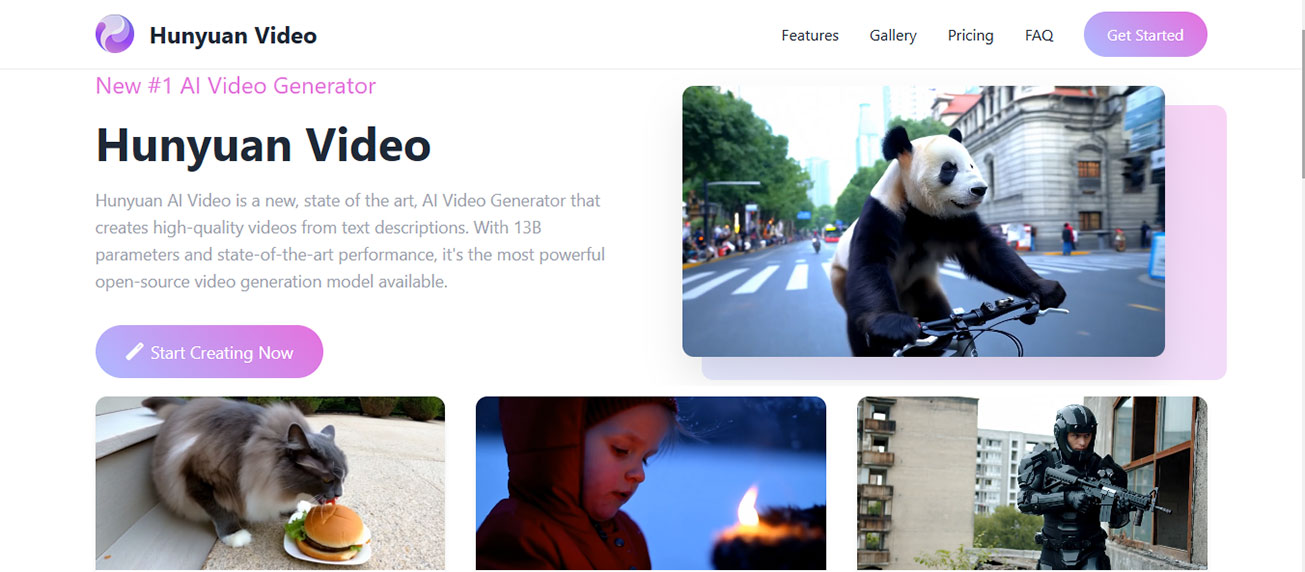
HunyuanVideo is Tencent’s open-source video foundation model built for text-to-video generation, and the repo description is direct about the core promise: turn simple text prompts into high-quality videos. Tencent also frames it as “a systematic framework for large video generation,” which matters because it tells you this is not just a one-off toy checkpoint. It’s better to think of hunyuan video tencent open source as a family of releases with different use cases, setup paths, and tradeoffs rather than one single download.
The original HunyuanVideo is the broad text-to-video foundation release. If your main interest is cinematic prompt-driven generation—scene descriptions, camera motion, stylized short clips, or testing how far an open source ai video generation model can go from pure text—this is the branch you’ll keep seeing in benchmark discussions and repo references. It’s the one to start with when quality matters more than simplicity and you’re comfortable reading setup docs closely.
Text-to-video vs image-to-video options
Then there’s HunyuanVideo-1.5, which Tencent describes as a lightweight video generation model with 8.3B parameters. That “8.3B” detail is the headline feature because it signals a lower barrier than heavier flagship-scale systems while still aiming for strong output quality. If you want local experimentation without jumping straight into the most demanding path, 1.5 is the practical starting point. It sits in a sweet spot for people who want to run ai video model locally, compare prompt behavior, and test workflow speed before committing to a larger or more complex setup.
HunyuanVideo-I2V is the image-to-video branch. It is built for generating realistic video from a single image, which makes it a different tool entirely from the text-first models. If your workflow starts with concept art, a product shot, an AI-generated still, or a storyboard frame, I2V is the one you want. In keyword terms, this is Tencent’s image to video open source model option inside the broader HunyuanVideo ecosystem.
A simple way to map the releases: start with the original HunyuanVideo for full text-to-video exploration, start with HunyuanVideo-1.5 for lighter local testing and faster adoption, and choose HunyuanVideo-I2V if your creative process starts from a still image and motion is the next step. That framing will also help when you search repos, ComfyUI nodes, tutorials, or community guides, because many posts use “HunyuanVideo” loosely even when they really mean 1.5 or I2V.
If you’ve been comparing projects like happyhorse 1.0 ai video generation model open source transformer discussions, broader open source transformer video model experiments, or other text-to-video repos, HunyuanVideo is worth attention because Tencent clearly isn’t treating it as a narrow demo. The family structure is the first thing to understand before you install anything.
How to Choose the Right Hunyuan Video Tencent Open Source Version
When to use the original model
Use the original HunyuanVideo when your priority is the full text-to-video experience and you want the release Tencent presents as the core video foundation model. This is the path for ambitious prompt-driven clips: complex scenes, dramatic lighting, deliberate camera movement, and experiments where you care more about quality potential than minimizing setup friction. If you already work with heavier creative AI pipelines and you’re comfortable handling dependencies, model weights, and GPU constraints, the original release makes sense as your reference point.
It also makes sense when you want to evaluate Tencent’s larger system design rather than just the lighter checkpoint. Because Tencent describes HunyuanVideo as a systematic framework for large video generation, the original release is the one to inspect if you’re comparing architecture direction, generation behavior, and output character against another open source ai video generation model.
When HunyuanVideo-1.5 makes more sense
HunyuanVideo-1.5 is the best entry point when your real goal is practical local use. Tencent positions it as a lightweight video generation model with 8.3B parameters, and that “lightweight” label is exactly why many people should start there. If you want to see whether hunyuan video tencent open source fits your machine before investing hours in troubleshooting a larger setup, 1.5 gives you a more approachable path.
It’s also the best choice for short-form testing. The available community performance example is useful here: one Reddit snippet reported 5 seconds of video generated in 284 seconds on a 5090 GPU using the 720p model at 848×480 and 24 fps. That’s not instant by any stretch, but it does give you a concrete benchmark to think with. If a 5090 takes that long for a short clip at those settings, you should expect slower turnaround on more modest hardware. That makes 1.5 a smart first checkpoint because you can probe quality, timing, and VRAM tolerance without jumping to the deepest end.
When to pick HunyuanVideo-I2V
Pick HunyuanVideo-I2V when the still image is the asset you care about protecting. If your source frame already nails character design, product shape, composition, costume, or lighting, image-to-video is usually more controlled than trying to regenerate the whole scene from a text prompt. Because Tencent positions I2V as generating realistic video from a single image, it’s the right path for motion tests, subtle camera moves, or turning polished key art into animated footage.
This is also the easiest choice if you know text prompting is not your bottleneck. If your issue is not “how do I describe this scene?” but “how do I animate this exact frame?”, skip text-to-video and go straight to I2V.
A simple decision path works well. Want text-only cinematic generation and don’t mind a heavier setup? Start with the original model. Want a lower-barrier local option with the 8.3B lightweight positioning? Start with HunyuanVideo-1.5. Want realistic movement from one still image? Start with HunyuanVideo-I2V. If you follow that path, you can avoid reading three different repos before making your first install decision.
How to Run Hunyuan Video Tencent Open Source Locally
Repository-first setup
The most direct way to run HunyuanVideo locally is still the repo-first path: clone the official repository for the release you want, follow the dependency steps exactly, download the required weights, and test with a short baseline prompt before changing anything. This route gives you the cleanest visibility into what is actually happening, which matters if you want to debug performance, swap settings, or evaluate the model as a developer rather than only as a GUI user.
Before you install, check five things immediately: your operating system, your NVIDIA GPU availability, your likely VRAM headroom, free storage for weights and caches, and whether the repo expects a specific Python/CUDA stack. Local AI video installs fail most often because one of those gets skipped. If you’re not sure about VRAM, assume video generation is demanding and plan conservatively. A user asking specifically about VRAM requirements in installation discussions is a clue that hardware fit is one of the first friction points.
ComfyUI and Pinokio workflows
A lot of interest around HunyuanVideo is clearly tied to GUI-based local workflows, especially ComfyUI and Pinokio. That lines up with the kind of users who want to run ai video model locally without living in the terminal all day. ComfyUI is the practical choice if you like visual node graphs, reusable workflows, and a faster way to compare prompts, seeds, and output settings. It also makes sense if your wider stack already includes image generation, upscaling, control nodes, or post-processing chains.
Pinokio-assisted installation is attractive when you want a more guided path that reduces manual setup overhead. Search interest around “How to Install HUNYUAN Video 1.5 locally using Pinokio and ComfyUI” tells you exactly why this matters: plenty of people want the shortest route from zero to first render. If your priority is usability over low-level control, a Pinokio-style setup can save time, especially on a fresh machine.
What to check before installing
Use this pre-install checklist before you commit:
- Which model are you installing: original, 1.5, or I2V?
- Are you on a supported OS for the workflow you picked?
- Do you have a compatible GPU, and enough VRAM to avoid immediate out-of-memory errors?
- Do you have enough disk space for model files, environment packages, outputs, and temporary cache?
- Are you using direct repo install, ComfyUI, or Pinokio?
- Do you know which resolution and duration you’ll test first?
- Are you okay with slower first-run setup while dependencies compile or cache?
For your first successful run, keep everything small and controlled. Choose a short clip, modest resolution, one simple prompt, and the default workflow from the repo or node pack. Don’t stack custom schedulers, extensions, and exotic settings on day one. The easiest way to get a stable baseline is to prove the install with a minimal job, then expand. That’s especially true with hunyuan video tencent open source because setup paths vary depending on whether you’re chasing text-to-video or image-to-video.
Prompting Tips for Better Results With Hunyuan Video Tencent Open Source
How to write usable text-to-video prompts
HunyuanVideo responds best when the prompt describes a shot, not just an idea. A useful structure is: subject, action, camera movement, environment, lighting, and duration intent. For example: “A silver sports car drifting through a rain-soaked neon city street at night, water spray from the tires, low tracking camera moving alongside the car, reflections on wet asphalt, blue and magenta cinematic lighting, designed as a short 4-second dramatic shot.” That gives the model clear visual anchors and reduces the chance of vague, mushy motion.
If you’re testing a new setup, keep prompts concrete. One subject is better than five. One camera movement is better than three conflicting ones. “Close-up portrait, slow dolly in, warm golden-hour light” is a better starter prompt than a giant paragraph full of style references and scene changes. With any open source transformer video model, prompt clarity usually beats prompt length during baseline testing.
How to approach image-to-video inputs
For HunyuanVideo-I2V, the starting image does a huge amount of work. Pick a still with strong composition, a readable subject silhouette, and lighting that already matches the mood you want in motion. A cluttered image forces the model to guess what should move and what should stay stable. A clean image with one dominant focal subject gives you much better odds of believable animation.
Single-image motion also benefits from realistic expectations. If the image already suggests possible movement—a person looking off-frame, fabric in wind, a car on a road, smoke, water, hair, clouds—the resulting clip usually has more natural motion opportunities. If the image is extremely flat, abstract, or overloaded with tiny details, motion can feel arbitrary. Start with a frame that already looks like a paused video shot, not just a pretty still.
Settings that affect output quality
One of the most useful concrete reference points from available testing is the reported 720p model setting at 848×480 and 24 fps. Even though “720p model” and 848×480 aren’t the same display resolution label in everyday language, the takeaway is practical: output size and frame rate directly affect speed, memory pressure, and quality expectations. If you raise duration, resolution, and fps together, generation time climbs fast.
For first tests, stay short—around 3 to 5 seconds if possible. That gives you enough room to judge motion, structure, and consistency without paying the full cost of longer renders. Also compare at least two or three seeds on the same prompt before rewriting the prompt. A prompt may be fine even if one seed gives you weak motion.
A simple testing recipe works well: one subject, one action, one camera cue, short duration, moderate resolution, and default fps. Once the model proves it can make a coherent short shot, increase complexity one variable at a time. That gives you clean signal on what is improving the result and what is just slowing the job down.
Performance, Speed, and Quality Expectations Before You Commit
What community tests suggest
The most concrete performance figure available from community material is a Reddit-reported example for HunyuanVideo-1.5: 5 seconds of video generated in 284 seconds on a 5090 GPU using the 720p model at 848×480 and 24 fps. That is a useful reality check. Even on top-end hardware, this is still a serious generation workload, not a near-real-time toy. If your GPU is below that class, plan for slower turnaround and build your testing workflow around patience, not rapid-fire iteration.
That single number also helps you budget your session. If one 5-second test can take several minutes on very strong hardware, it makes sense to evaluate prompts in batches, keep a notebook of settings, and avoid random changes. You’ll save more time by staying methodical than by endlessly tweaking.
How long outputs may behave
Quality over longer durations is where caution matters most. One community report noted major issues after around 10 seconds, including the video becoming noticeably deeper red and the final 2 to 3 seconds deteriorating visually. That kind of drift is common enough in video generation that it should shape how you test HunyuanVideo-1.5 from the start.
The practical takeaway is simple: don’t judge the model only by a long hero render. Start with short clips where consistency is easier to maintain. If a 4-second shot looks strong across multiple seeds, you have a real baseline. If a 12-second shot falls apart, that may be a duration problem rather than proof the model is unusable. Build confidence in short-range control first, then scale length carefully.
How to benchmark your own setup
A simple benchmark framework makes local testing much more useful:
- Pick one standard prompt and keep it fixed.
- Render the same prompt at one duration and one resolution across three seeds.
- Record total render time for each run.
- Score each result for motion coherence, subject stability, color consistency, and ending-frame quality.
- Repeat with one change only—higher duration, different resolution, or another model version.
Use a tiny spreadsheet or notes app and log: model version, resolution, fps, duration, seed, render time, and quality notes. You’ll quickly see whether your machine handles HunyuanVideo-1.5 comfortably, whether the original model is realistic for your hardware, or whether I2V gives better usable output for your workflow.
If you’re deciding whether to commit to this stack, benchmark three clip lengths: very short, short, and medium. For example, test 3 seconds, 5 seconds, and then something near the edge of where drift might appear. If quality drops sharply after the shortest tests, stay in the short-form zone for production experiments. That is the safest way to use hunyuan video tencent open source productively while keeping expectations grounded.
License, Commercial Use, and Safe Deployment Checks

What license to review
Before you use HunyuanVideo in any paid workflow, pull up the exact license text and read it end to end. The model is released under the Tencent Hunyuan Community License Agreement, and the Hugging Face license page lists a release date of December 3, 2024. That is the starting point for all legal and deployment questions.
One detail from the available license snippet matters immediately: it includes the phrase “THIS LICENSE AGREEMENT DOES NOT APPLY IN THE …” before the visible text cuts off. That truncated line is enough to tell you there are exclusions, limits, or scoped conditions you need to verify directly in the full document. Do not assume “open source” means unrestricted commercial freedom here. For practical purposes, treat this as an open source ai model license commercial use review task, not a checkbox.
What to confirm before client or commercial use
Use a quick confirmation checklist before offering HunyuanVideo outputs to clients or deploying the model in a product:
- Is commercial use explicitly permitted for your use case?
- Are there revenue, company size, field-of-use, or regional restrictions?
- Can you redistribute weights, modified weights, or packaged workflows?
- Is hosted service use allowed, or only internal/local use?
- Are there attribution or notice requirements?
- Are there restrictions on fine-tuning, API exposure, or reselling outputs?
- Are there prohibited scenarios that would affect your product category?
If you are building a hosted tool, this matters even more. A license can permit research or local experimentation while limiting commercial SaaS-style deployment. If you are handing off workflows to a client, verify redistribution and packaging terms too. A lot of friction happens not at generation time, but when someone tries to bundle weights, automate access, or integrate the model into a customer-facing app.
The safest workflow is straightforward: check the model page, check the repo, read the full Tencent Hunyuan Community License Agreement, and save a copy of the terms you relied on at the time of deployment. If there is any ambiguity, especially around hosted use or paid client work, get clarification before launch. That is the only sane way to handle hunyuan video tencent open source when real money or external users are involved.
Conclusion

HunyuanVideo is easiest to use when you stop thinking of it as one model and start treating it as a toolkit with three clear entry points. Go with the original HunyuanVideo if you want the full text-to-video foundation experience, HunyuanVideo-1.5 if you want the lightweight 8.3B option for more approachable local testing, and HunyuanVideo-I2V if your workflow starts from a single still and you want motion from that image.
On the practical side, keep your first runs short, controlled, and boring in the best possible way. Use direct repo install if you want maximum control, or ComfyUI and Pinokio if you want a friendlier local path. Test with simple prompts, modest settings, and a fixed benchmark process. The reported example of 5 seconds in 284 seconds on a 5090 at 848×480 and 24 fps is a good reminder that this is powerful tech, but it still needs patience and method.
Most important, do the license homework before you move from experimentation to production. Read the Tencent Hunyuan Community License Agreement carefully, verify any exclusions, and confirm your exact use case before client delivery or commercial deployment. Once you match the right release to your hardware and workflow, HunyuanVideo becomes much easier to evaluate honestly—and much more fun to use well.