 HappyHorse Model
LTX Video 2.3 (Lightricks): Setup and Usage Guide
If you want to run LTX Video 2.3 locally or in a simple workflow, the fastest path is to pick the right setup option first and then use detailed prompts the model already understands well.
What LTX Video 2.3 Is and Why This Lightricks Guide Matters
Core upgrades in LTX-2.3
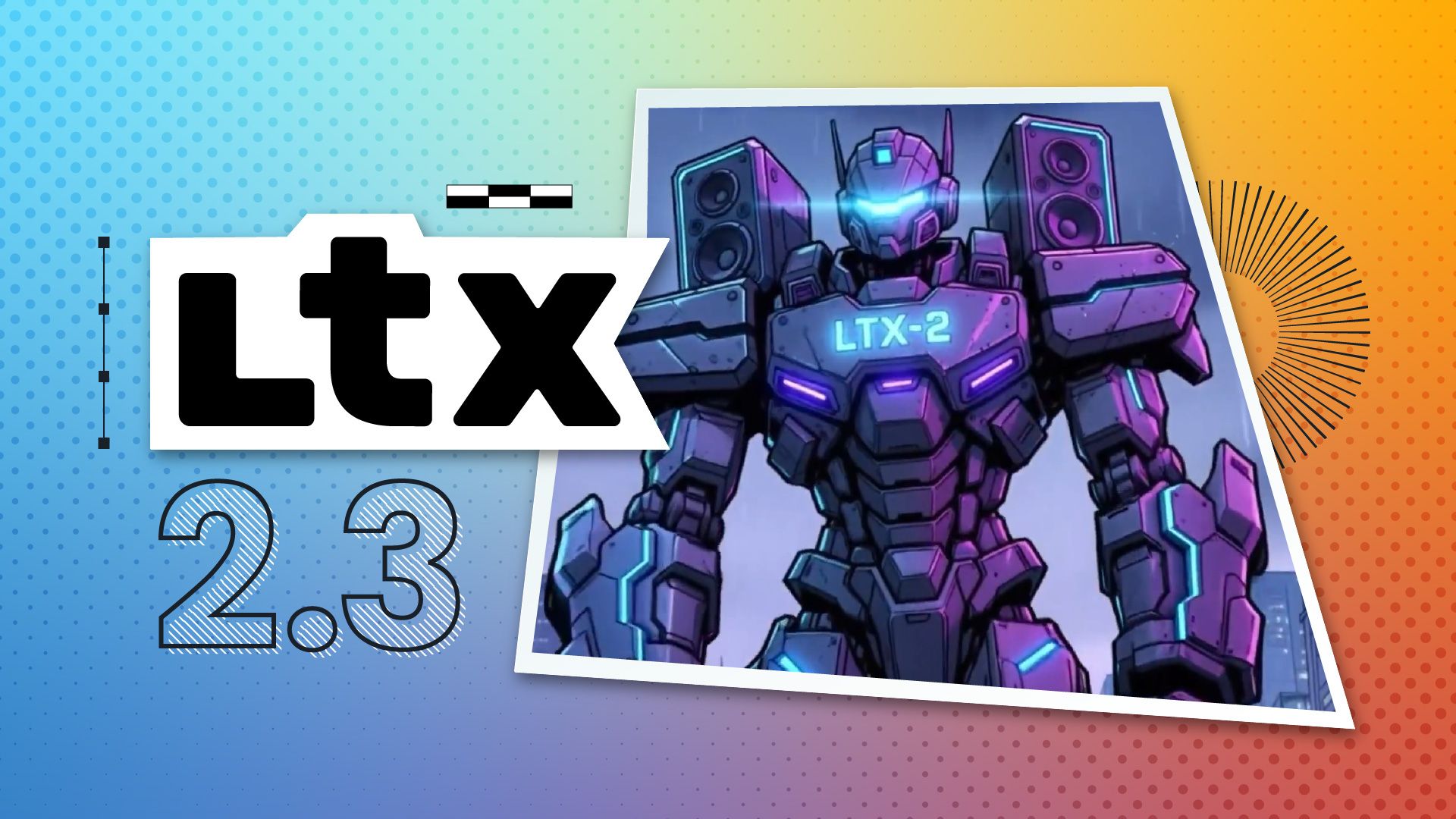
LTX-2.3 is Lightricks’ latest open-source AI video model, and it stands out because the upgrade is not just about benchmark talk or vague “better quality” claims. The reported improvements are concrete: sharper visual detail, built-in native audio, stronger motion, and native portrait support. If you have used earlier open source AI video generation model workflows, those four upgrades matter immediately because they affect what you see in the first render, not only edge-case tuning later.
Sharper detail means scenes hold together better under movement, especially when you ask for camera motion, fabric texture, lighting changes, or environmental effects. Stronger motion is another meaningful jump. One anecdotal comparison from raw research described older LTX outputs as having more of a “Play-Doh” look in motion, while LTX 2.3 feels more stable and natural. That phrasing is informal, but it maps to what most of us care about in practice: motion should feel intentional instead of smeared or rubbery.
Native audio is one of the most interesting additions because it pushes LTX-2.3 beyond the standard silent clip workflow that many open-source video tools still rely on. Native portrait support also matters right away if you create vertical content for shorts, reels, or mobile-first publishing. Instead of forcing a landscape-first pipeline and cropping later, you can plan for portrait output from the beginning.
Public-facing materials also position LTX 2.3 as a next-generation AI video generator and a strong open-source option. That matters if you are comparing it against other tools in the broader open source transformer video model space. You are not just testing a niche release—you are working with a model Lightricks is clearly pushing as a major step forward in usability and output quality.
Best use cases for first-time setup
The reason this ltx video 2.3 lightricks guide matters is simple: LTX supports multiple generation workflows, and setup choices affect your success more than theory does. LTX documentation recommends ComfyUI as the best balance of power and ease of use, while LTX Desktop gives you a more direct local workflow. External notebook-based options also exist for low-cost testing.
That means the first decision is not “what is the perfect prompt,” but “which setup path matches my hardware and patience level?” If you have a local NVIDIA GPU and want control, ComfyUI is usually the smart default. If you want a simpler local text-to-video experience, Desktop is easier to approach. If you just want to test whether the model fits your projects before a full install, a community Kaggle notebook can be a cheap trial route, though those external workflows can change without warning.
Keep expectations practical. The focus here is setup, first generations, and prompt usage. The fastest win with LTX-2.3 is not mastering every node graph or advanced tuning option. It is getting one working workflow, generating one clean test clip, and then iterating with more specific prompts.
How to Choose the Best LTX Video 2.3 Lightricks Guide Setup Path
ComfyUI: best balance of power and ease of use
If you want the safest default recommendation, use ComfyUI. LTX documentation explicitly identifies ComfyUI as the best balance of capability and usability, and that lines up with real-world use. You get visual workflow control, repeatability, and enough flexibility to tune generation without jumping straight into a fully custom environment.
ComfyUI is especially useful if you already know you will want to do more than basic text-to-video. It is a natural fit when you plan to compare prompts, save workflows, swap components, or move toward adjacent tasks like image to video open source model pipelines later. For anyone who likes seeing each stage of the process instead of pushing a single “generate” button and hoping for the best, ComfyUI gives structure without becoming overly technical.
The other advantage is portability of workflow knowledge. Once you get comfortable inside ComfyUI, you are building habits that transfer across a lot of open-source visual generation tools. That makes it a strong long-term choice if you regularly run ai video model locally and want more control over outputs.
LTX Desktop for a simpler local workflow
LTX Desktop is the easier local path when you do not want to manage a more modular interface. LTX’s own blog frames Desktop as a practical way to get into local AI video production, and that positioning makes sense. It is a better fit when your goal is straightforward text-to-video generation with fewer moving parts between install and first render.
Desktop is useful if you value a direct first-run experience over workflow customization. If your ideal setup is “install, write a prompt, test the model, then refine,” this path can save time. It also lowers the mental overhead for first renders because you spend less energy understanding nodes, routing, and graph logic.
The tradeoff is control. If you are the type who quickly wants to tweak pipelines, compare versions, or combine techniques, ComfyUI usually grows with you better. Desktop is best when simplicity is the priority.
Cloud and notebook options for low-cost testing
If local hardware is the main barrier, cloud-style testing can be a smart way to validate the model before you commit to a full workstation setup. External research mentions a free Kaggle notebook workflow for LTX Video 2.3 that does not require a subscription. That can be useful for checking basic quality, prompt responsiveness, and whether the model’s motion and audio features match what you need.
Treat these notebook options as temporary and external. They are not the official core setup path, and they may break, move, or change limits. Still, they can help answer a practical question fast: “Do I like what LTX 2.3 produces enough to justify a local install?”
A simple way to choose is this. Pick ComfyUI if you want the best overall mix of power and usability. Pick LTX Desktop if you want the smoothest local beginner workflow. Pick a cloud notebook only if convenience and low-cost testing matter more than long-term stability or control. For most people, the strongest version of this ltx video 2.3 lightricks guide starts with ComfyUI, then branches to Desktop if simplicity wins.
LTX Video 2.3 System Requirements and Hardware Planning

Official recommended specs
LTX documentation sets a high bar for the official recommended system profile. The guidance lists an NVIDIA A100 80GB or H100 GPU, 64GB or more of system RAM, 200GB or more of SSD storage, and CUDA 12.1 or higher. Those are not casual desktop specs. They tell you two things immediately: first, LTX 2.3 is built for serious video generation workloads; second, installation planning matters before you download anything.
The GPU recommendation is the headline item, but the RAM and storage numbers are just as important. Video generation workflows create heavy intermediate data, model files are large, and poor storage planning can stall a setup even when the GPU is technically supported. CUDA 12.1 or higher also matters because mismatched drivers and toolkits are one of the fastest ways to burn hours before first launch.
What smaller hardware reports really mean
Now for the part that confuses almost everyone: community reports suggest some LTX 2.3 workflows may run on much smaller hardware. One anecdotal claim says LTX 2.3 can run on an RTX 3060 laptop GPU with 6GB VRAM and 16GB RAM. Another claim swings in the opposite direction and suggests some repo-based workflows may need an RTX 6000, Gemma quantized to FP4, and 128GB RAM.
The practical takeaway is not that one side is right and the other is wrong. It is that hardware requirements are workflow-dependent. Different resolutions, model variants, quantization approaches, workflow graphs, frame counts, and optimization tricks can radically change what “runs” means. A setup that launches a short low-end test clip is not the same as a setup that consistently produces production-quality outputs with audio and strong motion at usable speed.
So if you see a post claiming “it runs on my 3060,” read that as “some limited workflow may be possible,” not “your experience will match official recommendations.” Likewise, high-end requirement claims may reflect a specific advanced workflow rather than the bare minimum to test the model.
How to plan storage, RAM, and CUDA
Before installing, check four things. First, confirm your GPU model, VRAM, and current NVIDIA driver version. Second, verify CUDA compatibility, aiming for CUDA 12.1 or higher to align with official guidance. Third, clear storage aggressively. If the docs say 200GB+ SSD, do not try to squeeze the setup into a nearly full system drive. Leave headroom for models, caches, outputs, and temporary files.
Fourth, be realistic about RAM. If you are below the official 64GB recommendation, smaller tests may still work, but you should expect tighter limits on resolution, clip length, batch behavior, or workflow complexity. If your machine is modest, start with the simplest text-to-video path, shorter generations, and lower expectations on speed.
This matters even more if your long-term goal is to run ai video model locally as part of a broader toolkit alongside another open source transformer video model or even tools such as the happyhorse 1.0 ai video generation model open source transformer ecosystem. Good planning up front saves reinstall cycles later.
How to Install and Launch LTX Video 2.3 with ComfyUI or LTX Desktop
ComfyUI setup checklist
A practical install sequence starts with hardware verification. Confirm your NVIDIA GPU, available VRAM, system RAM, free SSD space, and CUDA compatibility before downloading anything. If those basics are not in place, workflow errors later can look like model issues when they are really environment issues.
Next, install the required software stack for your chosen platform. For ComfyUI, start with a clean ComfyUI installation on a CUDA-ready system. Then add the LTX-compatible workflow and any required model files from the official LTX sources or linked setup materials. Keep the install path on a fast SSD with plenty of free space. Slow or crowded drives can make startup, caching, and generation noticeably worse.
Once ComfyUI is installed, load the LTX workflow, verify that model paths resolve correctly, and launch a basic test generation before changing advanced settings. This first render is not about perfect quality. It is a health check. If a simple prompt runs, your stack is close enough to refine from there.
LTX documentation frames ComfyUI as the easiest advanced starting point for a reason. It gives enough control to troubleshoot issues clearly. If something fails, you can usually identify whether the problem is model loading, memory pressure, or a missing dependency rather than guessing blindly.
LTX Desktop first-run checklist
For LTX Desktop, the process is simpler. After hardware verification, install the Desktop application, follow the local setup instructions from LTX’s blog guidance, and let the app finish its first-run downloads before you judge startup speed. Initial loads are often slower because models and support files are still being placed and indexed.
On first launch, test with a short prompt and a short generation target. Do not immediately push long cinematic prompts, heavy motion, and portrait-plus-audio tests all at once. A cleaner first-run sequence is: open the app, confirm the model loads, enter a short descriptive prompt, render a small test clip, then adjust quality or aspect ratio after you know the base workflow is stable.
Desktop fits best when you want a direct local text-to-video experience. If your machine is borderline on resources, this simplicity can help because you are not managing as many moving parts at once.
Common setup mistakes to avoid
The biggest installation mistake is ignoring CUDA compatibility. If official guidance says CUDA 12.1 or higher, check your driver and toolkit early. Do not wait until a model fails to load. The second common mistake is underestimating storage. LTX is not a tiny install, and SSD pressure causes weird instability fast.
The third mistake is assuming community success reports guarantee your exact hardware will work. Workflow-specific performance limits matter. A lower-end laptop may open a lighter test, but that does not guarantee stable portrait generation with audio or longer clips. The fourth mistake is trying to optimize before confirming baseline functionality. First get one successful render. Then tune.
A good setup rule is simple: verify hardware, install the software stack cleanly, choose either ComfyUI or Desktop based on your tolerance for complexity, then download and launch the model workflow exactly once before making custom changes. That sequence prevents most avoidable dead ends in any serious ltx video 2.3 lightricks guide.
How to Use LTX Video 2.3: First Text-to-Video Workflow
Your first prompt in five simple steps
LTX’s own blog presents a beginner-friendly text-to-video path, and it is the right way to start. Step one: write a prompt. Step two: make it detailed. Step three: generate your first video. Then review and refine. The key idea is that LTX-2.3 understands normal, detailed descriptions well. You do not need magic words, strange token recipes, or keyword spam.
A strong first prompt should describe five things clearly: subject, action, setting, framing, and motion. For example: “A woman in a red raincoat walks through a neon-lit Tokyo alley at night, light rain falling, camera tracking from the side, reflections on wet pavement, realistic motion, cinematic lighting, subtle city ambience.” That gives the model something specific to build instead of forcing it to infer everything.
Start with a scene you can evaluate easily. Human movement, clothing texture, lighting reflections, and moderate camera motion are useful because they expose whether the model is delivering the sharper detail and stronger motion LTX 2.3 is known for.
What settings to focus on first
On your first run, focus only on a few variables: prompt quality, aspect ratio, clip length, and whether the generation completes reliably. Avoid over-tuning all available controls at once. If your hardware is limited, shorter clips and simpler scenes give you a better success rate and clearer comparison points.
Aspect ratio is one of the smartest early tests because native portrait support is one of LTX-2.3’s standout features. If vertical content matters to your workflow, test a portrait output early instead of assuming a landscape-first render will crop cleanly later. This gives you a direct sense of how the model composes in a vertical frame.
If your setup supports native audio in the chosen workflow, test it with a scene where audio expectation is obvious, like rain, city ambience, or a simple environmental soundscape. Keep expectations realistic on first pass. The point is to confirm the built-in audio feature is functioning and to see whether the generated result matches the scene direction.
When to use portrait and audio features
Use portrait mode whenever the destination is mobile-first content. Native portrait support is not just a convenience feature; it changes composition, framing, and subject placement from the start. If you are generating creator-style clips, interviews, fashion shots, or vertical story scenes, it should be one of your first tests.
Use native audio when atmosphere is part of the idea, not as an afterthought. A windy shoreline, busy street, crackling fire, or indoor café scene gives audio a job to do. That makes it easier to judge whether LTX-2.3 is actually helping your workflow compared with a silent video pipeline that needs separate sound design later.
The best first-run workflow is simple: write one detailed prompt, choose either standard or portrait framing based on your target platform, generate a short clip, review motion and detail, then make one change at a time. That is how you get a real feel for the model instead of getting lost in controls.
Prompting and Optimization Tips in This LTX Video 2.3 Lightricks Guide

How to write prompts that get better motion and detail
The most useful prompting advice from LTX’s own guidance is also the least flashy: be specific. LTX-2.3 responds well to detailed prompts and does not require magic words. So instead of stacking vague quality tags, describe what should actually happen on screen.
Include the subject clearly: who or what is in the scene. Include the action: walking, turning, looking up, drifting, running, speaking, rain falling, smoke rising. Include the setting: alley, beach, studio, living room, rooftop at sunset. Include framing: close-up, medium shot, wide shot, top-down, side tracking shot. Include motion: slow camera dolly in, handheld feel, steady side follow, dramatic zoom out. Those details help the model deliver stronger motion and sharper visual consistency.
To optimize around LTX 2.3’s strengths, ask for scenes where clarity and movement matter. Good examples include portrait shots with subtle facial movement, cloth motion in wind, urban night scenes with reflections, and moving camera shots through structured environments. If you want to test native audio, describe the sound source naturally inside the scene instead of appending random audio keywords.
How to iterate when results miss the target
When a result misses, resist the urge to rewrite everything. Change one variable at a time. If the subject looks right but motion is weak, revise only the action and camera direction. If the motion is good but composition feels off, change the framing. If the environment works but the overall tone is wrong, adjust lighting or scene mood.
A reliable iteration method looks like this:
- Save the original prompt.
- Duplicate it.
- Change one element only.
- Render again.
- Compare both outputs side by side.
That method gives you usable feedback instead of confusion. After three or four controlled tests, patterns start to appear. You will notice which camera descriptions produce stable motion, which environment details add visual richness, and which wording helps portrait framing hold up better.
Keep a small library of prompts that worked. Save one for portrait scenes, one for cinematic motion, one for environmental audio, and one for a clean realism baseline. Those become reusable templates, not rigid formulas.
Best next steps after your first successful render
Once you have one successful render, expand gradually. Try the same scene in portrait and landscape. Add a sound-rich environment to test native audio. Increase motion complexity in small steps. Move from a pure text-to-video clip toward adjacent workflows like image to video open source model experiments if your toolchain supports them.
This is also where broader ecosystem thinking helps. If you compare LTX against another open source ai video generation model, an open source transformer video model, or newer niche projects, use the same scene prompt across tools so the differences are meaningful. If commercial projects are on your roadmap, review each project’s open source ai model license commercial use terms before building a client-facing pipeline around it.
The best optimization habit is consistency. Use repeatable prompts, save working settings, and only scale complexity after baseline quality is stable. That is how this ltx video 2.3 lightricks guide turns from a one-time setup into a workflow you can actually trust.
Conclusion

LTX Video 2.3 is easiest to approach when you choose the setup path before obsessing over advanced controls. For most local users, ComfyUI is the most practical starting point because LTX documentation positions it as the best balance of power and ease of use. If you want a more direct local experience with less interface complexity, LTX Desktop is the better fit. If hardware is the only thing stopping you, a community notebook can help you test the waters, but treat it as temporary.
The main hardware reality is worth keeping in mind. Official recommendations are high-end: A100 80GB or H100, 64GB+ RAM, 200GB+ SSD, and CUDA 12.1 or higher. Smaller community-tested setups may work for limited workflows, but they are not guaranteed replacements for the official baseline. Plan storage, RAM, drivers, and CUDA compatibility before installation, and you will save yourself a lot of frustration.
Once the model is running, keep your first workflow simple. Start with one detailed prompt. Describe subject, action, setting, framing, and motion clearly. Test portrait mode if vertical output matters. Test native audio in a scene where ambience is obvious. Then iterate with small, deliberate changes rather than rewriting everything at once.
That practical approach gets the most out of LTX-2.3 fast: one clear setup choice, one good prompt, one successful render, and then steady improvements from there.