 HappyHorse Model
Text-to-Video AI: How It Works Under the Hood
Text-to-video AI looks like magic from the outside, but once you understand the prompt-to-video pipeline, its strengths and quirks become much easier to predict and use well.
What Text-to-Video AI Is and Why It Matters
A simple definition of text-to-video AI
Text-to-video AI is a type of generative AI that takes a natural-language prompt and produces a video that matches that request. That core definition is consistent across standard references, including Wikipedia’s description of text-to-video models as systems that accept text input and generate relevant video. If you type “a golden retriever running through shallow ocean water at sunset, slow motion,” the model tries to turn that sentence into moving visuals instead of just returning images or text.
That’s the narrow definition, but in practice AI video generation is broader. It can generate video from text, from still images, or from structured data without any traditional filming. That means the same general category includes a prompt-only cinematic clip, an image-to-video animation, a slideshow-style explainer assembled from a script, or a branded social video built from templates and voiceover. Knowing that wider definition helps when comparing tools, because not every “AI video generator” is doing the same job under the hood.
How text prompts become video outputs
At the simplest level, the workflow is prompt in, video out. You enter a description, the model interprets the request, generates visual frames or latent visual representations, adds motion over time, and renders a clip. Some products hide nearly all of that complexity behind a single text box. Others expose more controls, like camera movement, style references, scene timing, or source image constraints.
That basic flow matters because it explains why results vary so much between tools. Some systems are closer to pure generative models, where the prompt is the main instruction set. Others are workflow products layered on top of generation, with templates, stock footage, automated captions, voice tools, or editing timelines. Pictory, for example, is especially useful when the goal is script-to-video production with auto captions and easy templates rather than raw cinematic generation from scratch. Canva AI’s Create a Video Clip is built around convenience, offering one-click generation, cinematic visuals, and synchronized audio inside a broader design workflow.
This category matters right now because it lowers the friction of making video. You can sketch an idea in plain language, generate a first pass fast, and refine from there. That speeds up prototyping, short-form content production, ad concepting, internal demos, and visual storytelling when a camera crew is unrealistic. It also lowers the skill barrier. You still need judgment, prompting, and editing, but you no longer need to start with footage, a set, or advanced motion software just to test an idea visually.
Text to Video AI How It Works: The Core Pipeline Under the Hood
From prompt interpretation to scene generation
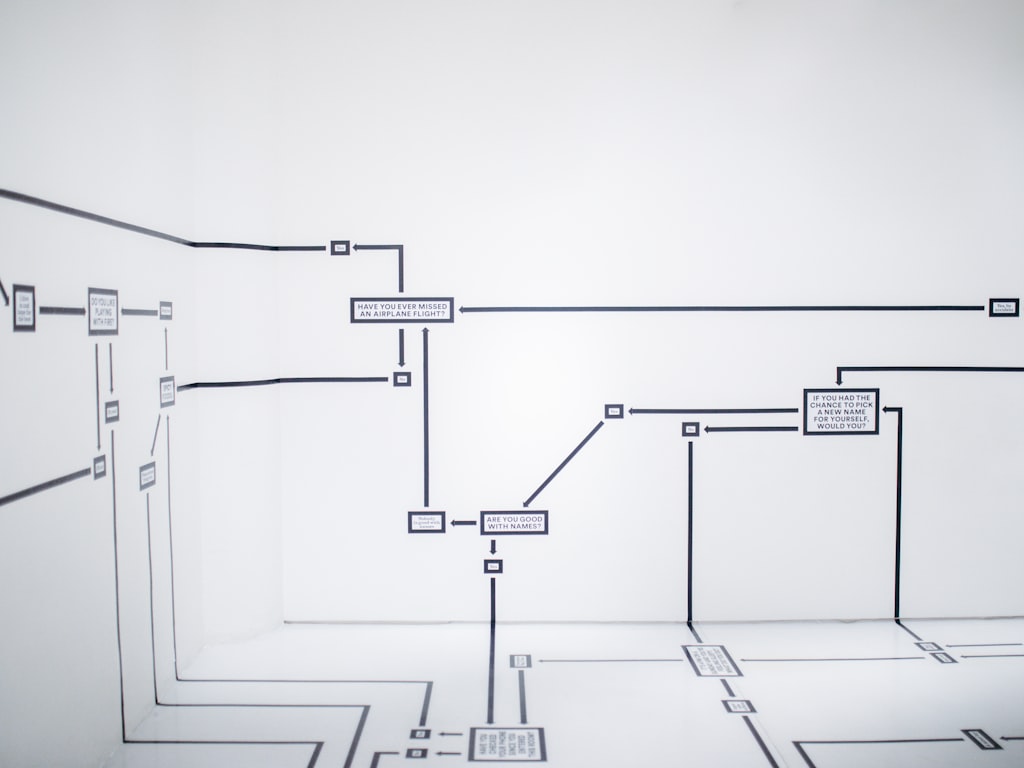
If you want a practical model of text to video ai how it works, think of it as a five-stage pipeline: prompt input, model interpretation, visual generation, motion assembly, and final rendering. Each stage can introduce either clarity or chaos depending on the tool and the prompt.
First, you give the system a prompt. That prompt may include the subject, action, setting, style, and camera direction. The model then interprets the language by mapping words and phrases into internal representations of objects, environments, relationships, and visual attributes. It is not “imagining” in a human sense. It is predicting what visuals and motion patterns are statistically associated with the instructions you provided.
Next comes scene generation. The system creates visual content that matches the interpreted prompt. In some tools, this starts from noise and progressively resolves into coherent frames. In others, especially image-guided workflows, the model uses a reference image as an anchor and generates motion around it. This is one reason some models are better than others at consistency. Zapier’s 2026 roundup called Google’s Veo 3.1 the best all-around AI video generator and specifically praised its strong prompt adherence and ability to stay close to your image. That combination matters when you need tighter control over style, framing, or brand visuals.
After the scene exists visually, the model has to solve motion over time. Static images are relatively easy compared with temporal consistency. The system must decide how a character moves, how lighting shifts, how the camera travels, and how backgrounds persist from frame to frame without warping or popping. This is where many weird artifacts show up: extra fingers, morphing objects, elastic limbs, changing clothes, inconsistent logos, or impossible environmental transitions.
Finally, the tool renders the result into a usable clip. Depending on the product, you might also get synchronized audio, captions, avatars, or editing tools layered on top of the base generation. That’s why “AI video generator” can mean anything from a pure model endpoint to an end-to-end production app.
Why prompt adherence changes the final result
Prompt adherence is just the tool’s ability to follow what you asked for instead of drifting toward something generic. If your prompt says “top-down shot of a ceramic mug on a wooden desk, morning window light, minimalist style,” a highly adherent model should preserve the camera angle, object type, lighting, and mood. A weaker one may give you a side-angle cup in a random kitchen with inconsistent lighting because it latched onto only part of the request.
This is the part most people miss when learning text to video ai how it works. Output quality is not only about how “smart” a model is. It’s about how reliably it can map your instructions into a stable sequence of frames. Vague prompts like “make a cool futuristic city video” leave too many gaps, so the model fills them with defaults. That often produces clips that look polished at a glance but feel generic, inconsistent, or only loosely connected to the idea you had in mind.
A better mental model is this: the prompt is your storyboard compressed into language. The more specific and well-structured it is, the fewer assumptions the model has to invent on your behalf. That does not mean stuffing every sentence with adjectives. It means giving the model the right anchors so it can allocate visual attention correctly.
How to Write Better Prompts for Text-to-Video AI
Prompt elements that improve quality
Prompt-writing is not a gimmick. It is an established practice that directly improves output quality, and current video tools reward structure much more than people expect. If you want better clips, specify the parts that models consistently need help with: subject, action, camera angle, setting, style, duration cues, and mood.
Start with the subject. Name the main thing on screen clearly: “a red fox,” “a female cyclist in a yellow rain jacket,” “a glass bottle of sparkling water.” Then define the action: “walking slowly,” “turning toward camera,” “opening the bottle and pouring into a glass.” Add the setting so the model knows where this happens: “in a misty pine forest,” “on a rainy Tokyo street at night,” “on a white marble kitchen counter.”
Camera language is a major quality lever. Terms like “close-up,” “wide shot,” “top-down,” “tracking shot,” “slow dolly in,” and “handheld feel” give the model compositional direction. Style also matters: “cinematic,” “documentary,” “anime-inspired,” “high-contrast commercial lighting,” or “minimalist product ad.” Duration cues help with pacing even when exact timing isn’t guaranteed: “quick social clip,” “lingering slow-motion moment,” or “short reveal shot.” Mood finishes the instruction set: “calm,” “tense,” “playful,” “luxury,” “dreamlike.”
A practical prompt formula readers can reuse
A reusable formula is:
[Subject] + [Action] + [Setting] + [Camera] + [Style] + [Duration/Pacing] + [Mood]
Here’s a weak prompt:
“A dog at the beach.”
It is short, but it leaves almost everything unresolved. Breed, action, time of day, shot type, and emotional tone are missing, so the model improvises.
Here’s a stronger version:
“A golden retriever sprinting through shallow ocean water at sunset, medium tracking shot from the side, cinematic slow motion, warm golden light, joyful and energetic mood, short 6-second clip.”
That version gives the model concrete anchors it can actually use. You will usually get better framing, more coherent action, and a clip that feels intentional rather than random.
Another weak prompt:
“A futuristic city.”
Stronger version:
“Wide aerial shot of a futuristic city at blue hour, flying traffic between tall glass towers, subtle fog, neon reflections on wet streets, smooth drone-style camera move, high-detail cinematic sci-fi style, calm but awe-filled mood.”
Notice what changed: the improved version narrows the visual space. It tells the system what the city should look like, when the scene happens, what motion exists, and how the camera behaves. That clearer structure improves instruction-following and reduces generic filler details.
If a tool supports negative prompting or exclusions, use them carefully: “no text overlays,” “no extra people,” “no logo changes,” or “avoid cartoon style.” That can help, but the biggest gains still come from a clear positive prompt. For most workflows, the best process is write a structured prompt, generate one clip, inspect what drifted, then rewrite only the parts that failed. That loop is where prompt skill turns into noticeably better video quality.
Best Text-to-Video AI Tools Right Now and What Each One Does Best
Best all-around tools
The current market splits into two camps: strong general-purpose generation models and workflow-first tools designed to make usable content fast. That distinction matters more than any hype-filled ranking list. If your priority is raw generation quality and tighter instruction-following, Google’s Veo 3.1 stands out. Zapier’s 2026 roundup described it as the best all-around AI video generator on the market, specifically calling out strong prompt adherence and the ability to stick close to your image. Those two qualities make it especially useful when you need consistency between your idea and the final clip, or when you want generated motion built around a source image without the scene drifting too far off-brief.
Synthesia fits best when the goal is presenter-led or avatar-based communication rather than fully cinematic generation. It was highlighted as a strong option in short-form tool comparisons, and that tracks with how many teams use it: explainers, internal training, sales intros, and talking-head style content where speed and clarity matter more than freeform visual experimentation. If you need a human presenter on screen without booking talent or filming setups, it solves a different problem than tools built around scene generation.
Best options for script-to-video and easy editing
Pictory is one of the strongest choices when your raw material is a script and you want to turn it into a clean video quickly. It stood out in comparisons for clean script-to-video handling, solid auto captions, and easy templates. That combination is useful for short-form educational clips, social posts, repurposed blog content, and talking-point videos where readability and speed are more important than generating every frame from scratch. Auto captions are a practical win for vertical and social formats, and templates reduce the amount of manual assembly you need to do.
Canva AI is powerful for a different reason: it reduces friction across the whole creation process. Canva says its Create a Video Clip can turn text prompts into AI-generated videos in just one click, with cinematic visuals and synchronized audio. The real advantage is integration. You can generate clips, combine them with brand assets, add text, resize for platforms, and keep everything inside one familiar workspace. That makes it a strong fit for fast marketing drafts, lightweight promo content, and design-led teams that do not want to bounce between separate generation and editing tools.
One more useful pattern in the market: some platforms aggregate multiple generators inside one interface. A YouTube roundup pointed out that several AI video tools are accessible inside one platform. That is helpful when you want to compare outputs, switch models for different scenes, or keep one editing workflow while testing multiple engines underneath. If your process depends on flexibility rather than loyalty to a single model, these multi-model platforms can save a lot of time.
Why AI Videos Still Look Weird Sometimes
Common failure points in generated video
Even the best tools still break in very recognizable ways. Current systems can produce impressive clips, but they are not fully reliable, which is why outputs can look inconsistent, unnatural, or only partly aligned with the prompt. Beginner explainers regularly mention these limitations, and you can see them immediately in real use: faces subtly morph, hands behave strangely, object counts change mid-shot, and environmental details drift from frame to frame.
A big reason is temporal consistency. A single frame can look great, but video requires that the same subject stay coherent over time. If the model loses track of that continuity, clothing changes, background objects slide around, and movement looks physically wrong. Another issue is instruction hierarchy. If your prompt includes too many competing ideas, the model may satisfy some and ignore others. You ask for “cinematic handheld close-up in a dim café with steam from coffee and a person smiling softly toward camera,” and the result might nail the café and coffee but miss the close-up and facial expression.
There’s also the bigger unsolved challenge: generating a polished video that matches an entire script from beginning to end. Research discussions around current tools still frame that as an open question, not a solved workflow. That is why a strong single clip does not automatically translate into a perfect 90-second sequence with stable characters, exact story beats, and finished pacing.
How to troubleshoot better outputs
The fastest fix is usually to simplify. If a prompt tries to describe three actions, two camera moves, multiple emotions, and a complex environment in one shot, split it into scenes. One clip for the establishing shot. One clip for the action. One clip for the reaction. Models perform better when each generation request has a clean job.
The next fix is to make the structure clearer. If your output feels generic, your prompt is probably missing anchors. Add camera angle, lighting, setting, and mood. If the output feels chaotic, remove extra descriptors and keep only the details that matter most. Better results often come from shorter, sharper prompts rather than dense paragraphs.
Iteration is non-negotiable. Treat the first generation as a draft, not a final take. Generate, inspect, rewrite, and rerun. If a model supports image guidance, use a source image when consistency matters. That is one reason Veo 3.1’s reputation for sticking close to your image is so useful in real workflows.
Set expectations accordingly. Current tools excel at concept visualization, short atmospheric clips, product moments, social content drafts, and rapid variations. They still need editing, review, and sometimes manual stitching together for anything that must be tightly scripted, brand-perfect, or narratively consistent over longer durations.
Open Source Text-to-Video AI Models, Local Workflows, and What to Check Before You Use Them
When open source video models make sense
If hosted platforms feel limiting, expensive, or too opaque, an open source ai video generation model can make a lot of sense. Open source options are useful when you want more control over model choice, inference settings, customization, privacy, or automation. They also matter when you need a workflow that is not tied to a single company’s interface or pricing model.
People searching for terms like open source transformer video model or image to video open source model are usually trying to answer a practical question: can I get strong generation without being locked into a hosted app? Sometimes yes, but the tradeoff is complexity. Instead of entering a prompt on a polished web dashboard, you may be managing repositories, model weights, dependencies, VRAM limits, generation settings, and output pipelines.
There is also rising curiosity around very specific long-tail searches such as happyhorse 1.0 ai video generation model open source transformer. The important thing with niche model names is not to assume capability from the label alone. Verify whether the model is truly available, actively maintained, documented, and usable in your hardware environment before building a workflow around it.
Licensing, local runs, and image-to-video options
The key difference between hosted platforms and local workflows is who handles the infrastructure. With a hosted tool, the provider manages compute, model updates, and rendering pipelines. If you want to run ai video model locally, you handle that yourself. That often means checking GPU requirements, storage needs, installation steps, and generation speed before you commit. Video models can be far more demanding than image models, especially for higher resolutions or longer clips.
Before choosing any open model, verify the license carefully. Searches for open source ai model license commercial use exist for a reason. “Open” does not automatically mean unrestricted commercial use. Some models allow research only. Others allow commercial projects with attribution or separate terms. If the output will be used in client work, ads, product demos, or monetized channels, read the license text directly rather than trusting a third-party summary.
Also check whether the model supports your preferred input type. Some systems are built mainly for text-to-video, while others are stronger as an image to video open source model, which can be more useful when you already have concept art, product images, or keyframes and want controlled motion rather than fully generated scenes. Image-guided workflows often produce more consistent results because the source frame acts as a visual anchor.
Finally, remember that some platforms aggregate multiple models in one place. That can be the sweet spot between full DIY and fully closed software: compare engines, keep workflow flexibility, and avoid managing everything from scratch. For a lot of creators, that hybrid path is more practical than going fully local on day one.
Conclusion
Text-to-video generation gets a lot less mysterious once you see the actual pipeline: prompt, interpretation, scene creation, motion, and rendering. That mental model explains both the impressive results and the weird failures. It also explains why text to video ai how it works is really a question about control: how clearly you describe the shot, how well the model follows instructions, and how much cleanup the workflow requires afterward.
The best results usually come from four habits. First, understand what the tool is actually built for, whether that is raw generation, avatars, script-to-video, or integrated editing. Second, write prompts with clear anchors like subject, action, setting, camera, style, pacing, and mood. Third, pick the platform that matches the job: Veo 3.1 for strong prompt adherence and image fidelity, Pictory for script-based video with captions and templates, Synthesia for presenter-style output, and Canva AI for fast one-click creation inside a broader design workflow. Fourth, treat outputs as fast drafts that improve through iteration.
That’s the most useful way to approach text to video ai how it works in practice. The tools are already good enough to accelerate production and unlock ideas quickly, but they still reward precision, testing, and editing. When you work with the pipeline instead of against it, the results get much more predictable—and much more usable.